1. Welcome
SineWav is a family of audio plugins for your voice and your music. Each plugin shows you what it is doing while it does it, so you can set it by eye as well as by ear.
- SineWav NS removes steady background noise (fans, air conditioning, hum) and quiets breaths.
- SineWav Gate silences your mic between phrases.
- SineWav Expander turns the room down between your words, more gently than a gate.
- SineWav De-esser tames harsh "s" sounds.
- SineWav EQ-Octo is an 8-band equalizer drawn over your live sound.
- SineWav Compressor evens out your level.
- SineWav Limiter sets a ceiling that nothing passes.
Use any of them, in any order, in your own chain. There is no right order for everyone: your voice, your room and your taste decide.
What you need
- Windows 10 or 11, 64-bit.
- A host that loads VST3 plugins. SineWav is tested in REAPER and in OBS Studio through the free atkAudio plugin host (see Using SineWav in OBS). Other VST3 hosts should work but are not yet tested.
- An internet connection to activate. After that, SineWav works offline.
SineWav runs on your CPU. No graphics card is needed. It works at any sample rate your host uses.
2. Install
- Close your DAW and OBS. Plugins cannot be replaced while a program is using them.
- Run the installer (
SineWav-Setup-1.0.5.exe) and allow it to make changes to your PC. It needs administrator rights because plugins install to a shared Windows folder. - Choose what to install. Full installation installs every plugin. Choose plugins lets you pick. The SineWav app is always installed: it holds your licenses and keeps SineWav up to date.
- Finish. The plugins are in
C:\Program Files\Common Files\VST3\, the folder every VST3 host searches. The SineWav app is in your Start menu and on your desktop.
Installing a plugin you have not bought is harmless: until it is activated it passes your audio through untouched (see Not activated).
3. The SineWav app: licenses and updates
The SineWav app (in the Start menu as SineWav Manager) is where your licenses live. Open it once after you buy, and again whenever you want to move a license or install an update.
Activate this PC
- Copy the license key from your receipt email.
- Paste it into the box that says Paste a license key.
- Click Add license.
The app checks the key with the license server and activates this PC. You will see "Added [product]. This PC is activated." and the product appears under Licenses on this PC. A bundle lists every plugin it includes, with the version installed on this PC, or "not installed".
Open (or reopen) your plugins in your host. They are now unlocked. If you own more than one SineWav product, add each key the same way; the app combines them.
3 activations at a time
Each purchase gives you 3 activations at a time, one for each PC you use it on. Activating the same PC again (after reinstalling Windows or the app, for example) reuses its activation instead of using up a new one. To move a license to a new PC, free an activation first:
- From the PC you are leaving: in the SineWav app, click Remove next to the license, then confirm Remove from this PC. One activation of that key is free again.
- From any PC: click Activations next to a license to see every PC it is active on, then click Deactivate PC next to the one you no longer use.
- From a browser: the My activations page shows the same list and lets you deactivate a PC with only your license key.
If all 3 activations are in use when you add a key, the app opens the list for you: deactivate a PC you no longer use, then add the key again.
Check now
The app checks your licenses with the server from time to time on its own. Check now does it immediately, for example right after you deactivate a PC somewhere else. The line under the list shows when they were last checked.
Updates
When a new version of SineWav is out, the app shows Update available with a short list of what changed, and each plugin that has an update shows an Update available badge in its header. Click Install update in the app. Close your DAW and OBS first. The app also checks for updates quietly when you sign in to Windows.
Offline
Activation needs the internet. After that, the plugins check your license from a file on your PC and never go online. The app refreshes that file when it can; if you are offline it keeps the one you have.
4. What every plugin has
The header
- BYPASS passes your audio through untouched, with a short crossfade so it never clicks. It is your host's bypass, so host automation and the host's own bypass button control the same switch.
- The headphones button (Listen) replaces the plugin's output with something worth hearing on its own: what NS, the De-esser or the Limiter is removing, what the Gate, Expander or Compressor's detector is listening to, or the selected band in EQ-Octo. Listen always starts off and is never saved. Turn it off before you go live.
- About shows the version, your license status, the third-party notices, and the color-blind switch.
- The small print shows your host's sample rate, the latency the plugin adds, and its version.
Not activated
If a plugin is not unlocked on this PC, its header shows Not activated: audio passes through unprocessed. It does exactly that: your audio passes through untouched, so it can never mute or spoil a stream. Click the badge to open About, which shows your license status. To activate, use the SineWav app (see Activate this PC).
Presets
The box at the top left holds the presets. Each plugin (except NS) comes with factory presets, and the line next to the box describes the one that is loaded. Save your own with Save preset in the same list; your presets appear with the factory ones and can be deleted from there. As soon as you change a control, the box shows Custom: your settings no longer match the loaded preset.
Your own presets are files in %APPDATA%\Red Warden Studios\SineWav\Presets\, one folder per plugin, so you can back them up or copy them to another PC.
Meters
The IN and OUT meters show your level in dBFS. The number above each meter is the highest peak so far: green below -18, yellow from -18, red from -6 (with an up arrow). Click a meter to reset it.
Knobs and graphs
- Drag a knob up or down to turn it. Click the number under it to type a value.
- Double-click most knobs to return them to their default.
- Lines on the graphs marked with their value (Threshold, Open, Ceiling and so on) can be dragged directly.
- Hover over anything for a short explanation of what it does.
- Drag the bottom-right corner of the window to make it bigger or smaller. Each plugin remembers its size.
Stereo and Link
Every plugin works on mono or stereo tracks automatically. On a stereo track, the dynamics plugins have a Link control: at 100% both channels are processed together, so the stereo image never moves; at 0% each channel is processed on its own.
Color-blind friendly colors
Open About in any SineWav plugin and switch on Color-blind friendly colors. SineWav switches to a palette that stays distinct with the common kinds of color blindness. Every SineWav plugin open in the same program changes at once, and every SineWav plugin you open later, in any host, uses it too. The setting is stored once for your Windows account, so you only set it once.
5. SineWav NS (noise suppression)
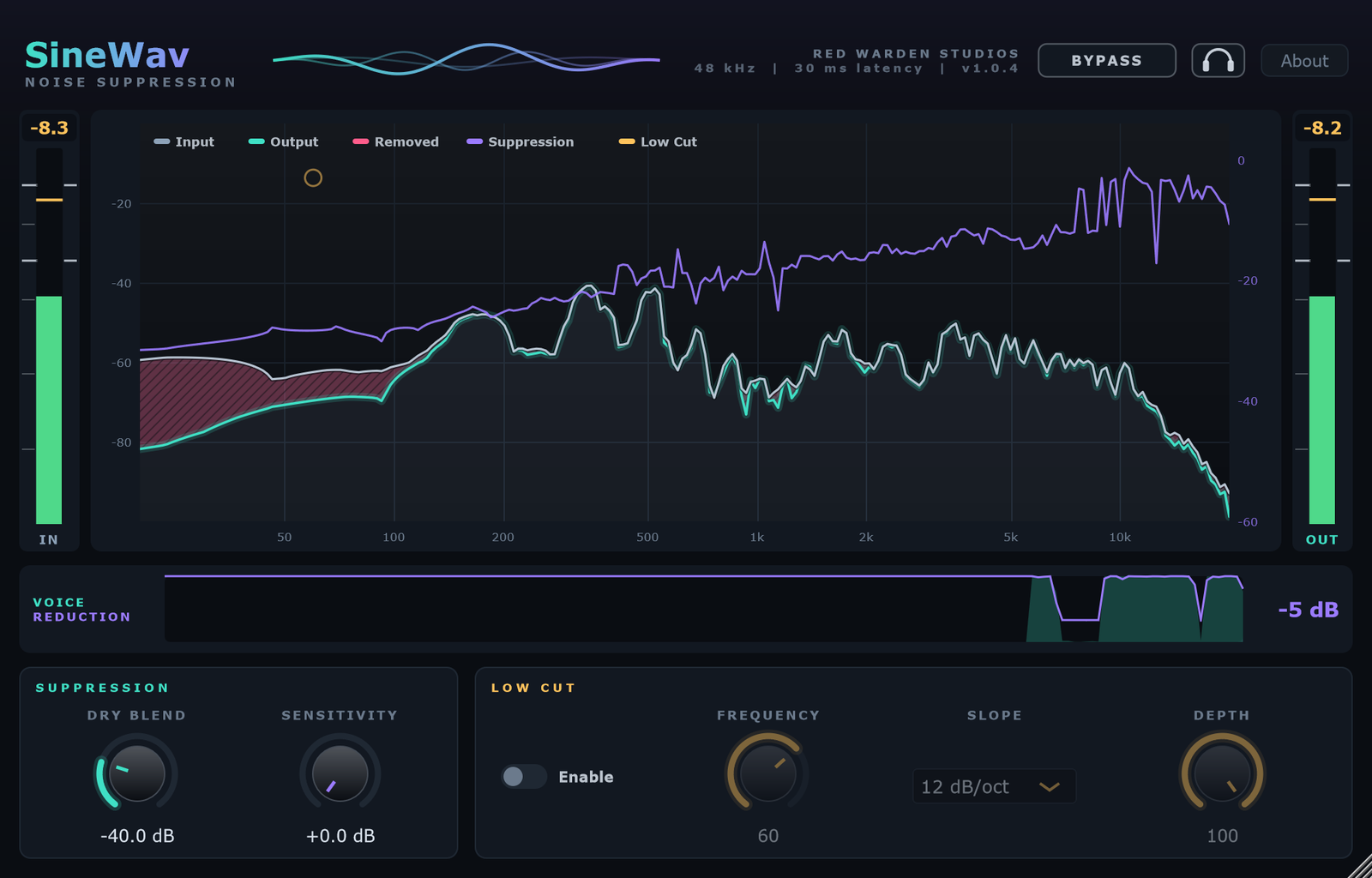
SineWav NS removes steady background noise from your mic in real time: fans, air conditioners, mini splits, computer hum and road rumble. It also quiets breaths, mouth clicks and swallows. It is built for a reasonably controlled room. It will not remove other people talking in the room, and very loud rooms are beyond what it is built for.
The displays
- Spectrum. Your sound from low (left) to high (right). The pale line is your input, the bright line is the output, and the hatched area is what was removed. The Suppression curve shows how hard each frequency is being treated. The Low Cut curve has a dot you can drag to move the low cut.
- Voice Reduction. The last 6 seconds. The filled shape shows when a voice is detected; the line shows how much NS is turning the signal down.
Suppression
| Control | Range | What it does |
|---|---|---|
| Dry Blend | default -40 dB | Mixes some of your original, untreated sound back in, shown as its level. All the way down is fully processed; turning it up keeps more of the natural room, and a little of the noise. A trace of dry sound keeps a voice natural instead of scrubbed. |
| Sensitivity | 0 to +18 dB default 0 | How readily NS decides that something is noise. Higher removes more noise but risks touching your voice. It does not change your output level. |
Low Cut
An optional filter that removes rumble below your voice before suppression.
| Control | Range | What it does |
|---|---|---|
| Enable | default off | Turns the low cut on or off. You can also double-click its dot on the spectrum. |
| Frequency | 20 to 80 Hz default 60 | Below this frequency the low cut turns the sound down. |
| Slope | 12 or 24 dB/oct | How steeply it falls away below the frequency. 24 is steeper. |
| Depth | 0 to 100% default 100 | How much the low cut turns down. 100% is the full filter; 0% does nothing. |
NS processes at 48 kHz inside and converts around it, so it sounds the same at any host sample rate.
6. SineWav Gate
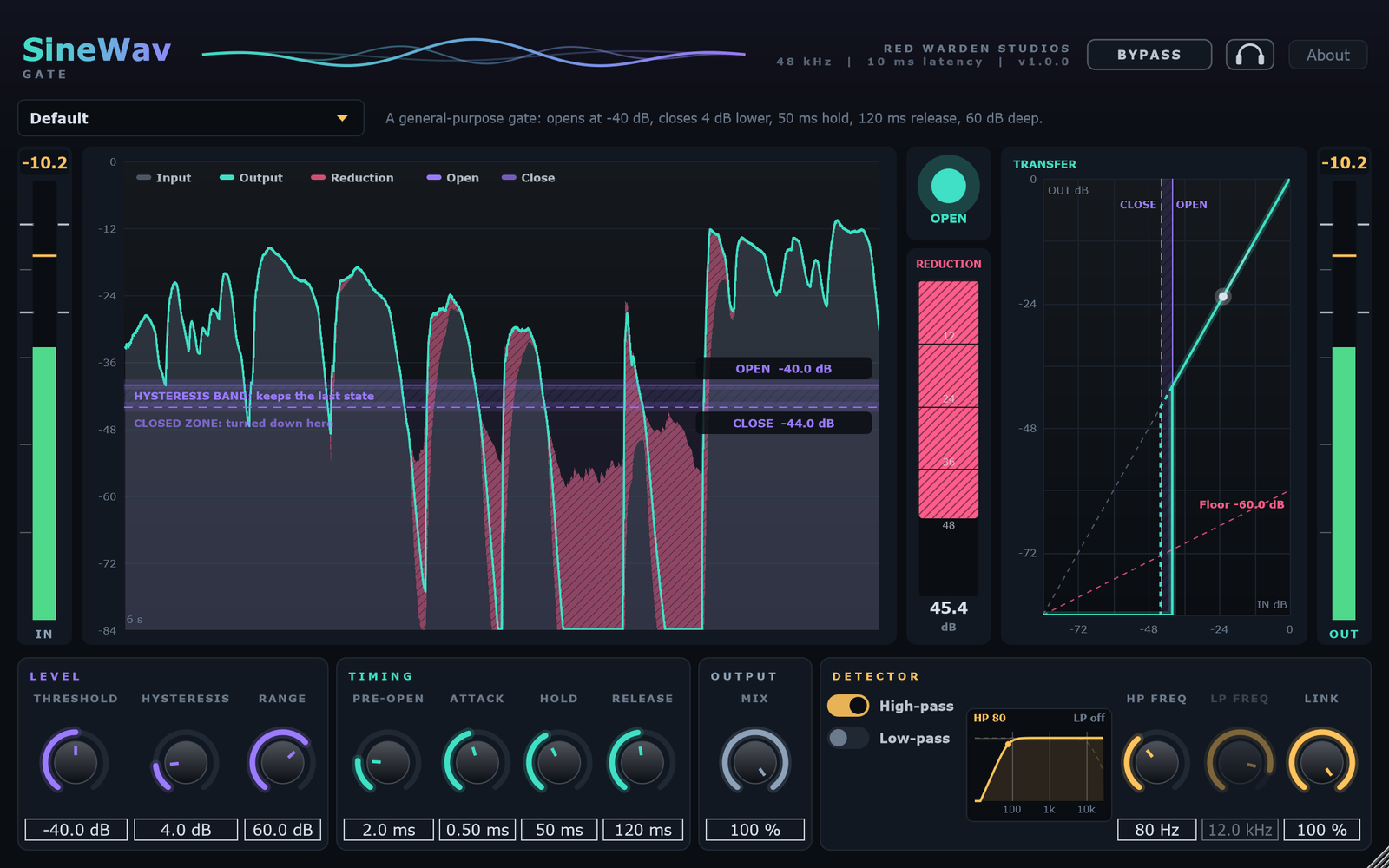
A gate shuts your mic off when you stop talking and opens it when you start again. SineWav Gate opens a moment before your sound arrives (Pre-open), so the start of a word is never chopped, and it uses two levels, one to open and a lower one to close, so it does not flutter on quiet words.
The displays
- Level graph (last 6 seconds). The ghost shape is your input, the bright line is the output, and the hatched area is what the gate turned down. The OPEN line is the Threshold and the CLOSE line sits Hysteresis below it; drag either one. Between them is the hysteresis band, where the gate keeps whatever state it was in.
- Open light. A filled round light means open; a square with a bar through it means closed.
- Reduction. How much the gate is turning the signal down right now, in dB.
- Transfer. Input level (bottom) against output level (side). The dashed diagonal means no change; the solid line shows what the gate does, and Floor is how far down a closed gate goes.
| Control | Range | What it does |
|---|---|---|
| Threshold | -80 to 0 dB default -40 | The level that opens the gate: anything louder opens it. |
| Hysteresis | 0 to 24 dB default 4 | The gap between the level that opens the gate and the lower level that closes it. A bigger gap stops the gate from chattering on words that hover around the threshold. |
| Range | 0 to 90 dB (Off) default 60 | How far down the gate turns the signal when it is closed. All the way up is Off: complete silence. Less range lowers the room between phrases instead of removing it. |
| Pre-open | 0 to 10 ms default 2 | Opens the gate this long before a sound reaches the output, so sharp starts are not cut off. The plugin always reports 10 ms of latency, whatever this is set to. |
| Attack | 0.01 to 50 ms default 0.5 | Opening speed: how fast the sound comes back once the level reaches the threshold. |
| Hold | 0 to 1000 ms default 50 | How long the gate stays open after the level drops below the close level, so the tails of sounds are not chopped. |
| Release | 5 to 2000 ms default 120 | Closing speed: how fast the sound is turned down once the hold has run out. |
| Mix | 0 to 100% default 100 | Blends the original signal with the gated one. 100% is the full gate; lower values let some of the original through. |
| High-pass | default on | Detector filter: keeps low rumble from opening the gate. It changes only what the detector listens to, never the sound you hear. |
| HP Freq | 20 Hz to 2 kHz default 80 Hz | Sounds below this frequency are ignored when the gate decides to open. |
| Low-pass | default off | Detector filter: keeps high hiss or cymbal spill from opening the gate. |
| LP Freq | 100 Hz to 20 kHz default 12 kHz | Sounds above this frequency are ignored when the gate decides to open. |
| Link | 0 to 100% default 100 | Stereo only. 100% opens and closes both channels together; 0% gates each channel on its own. |
To set the threshold, talk normally and watch the graph: put the OPEN line just under your quietest words and above the noise between them. Listen lets you hear exactly what the detector reacts to, which helps when setting the detector filters.
7. SineWav Expander
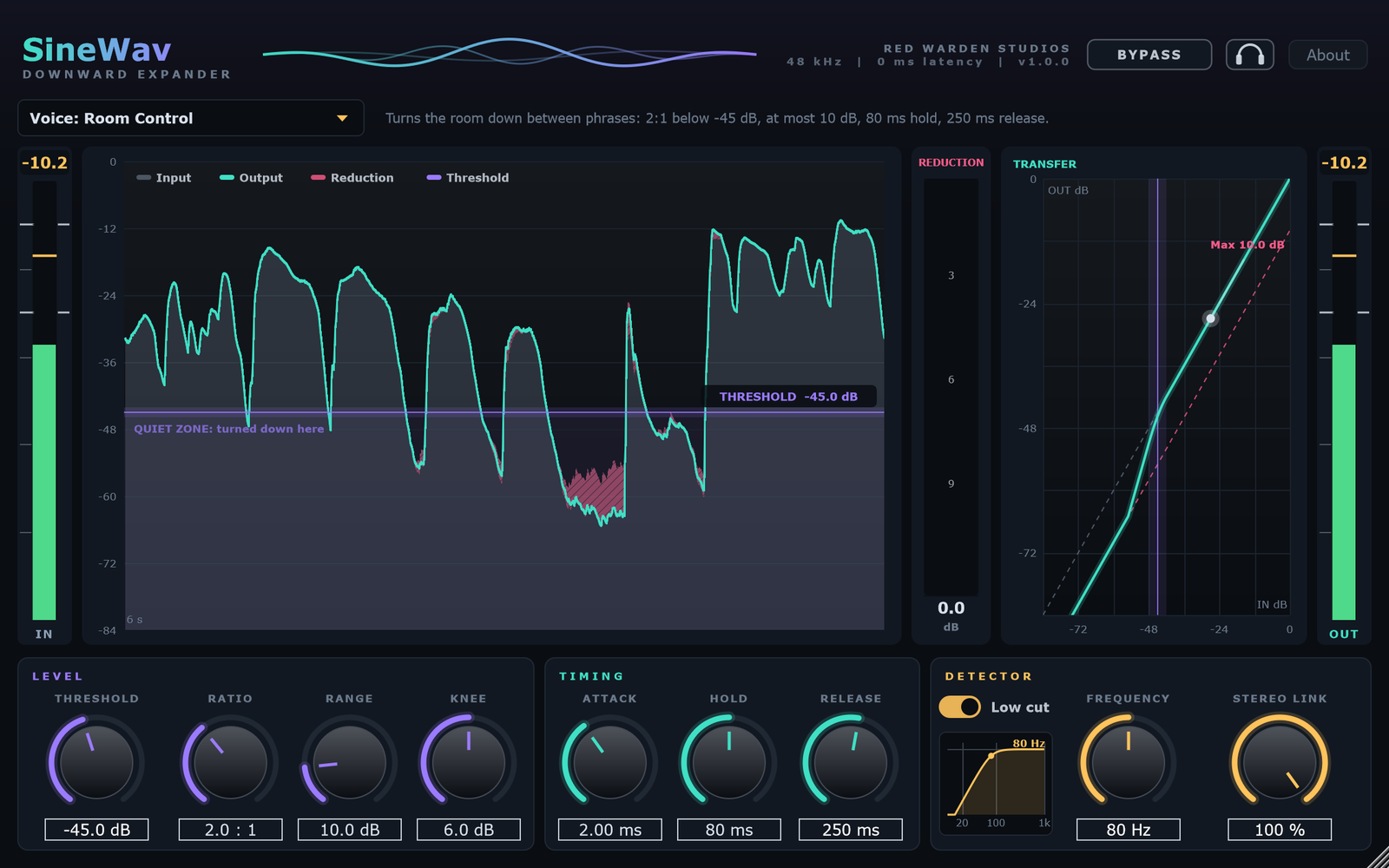
An expander is the gentle alternative to a gate. When you pause, it lowers the background smoothly instead of cutting it off, so the room never pumps in and out and the ends of your words are kept.
The displays
- Level graph (last 6 seconds). Input, output and the reduction, with the Threshold line you can drag. Below it is the quiet zone, where the sound is turned down.
- Reduction. How much the expander is turning the signal down right now, in dB.
- Transfer. Input against output. The dashed line marked Max is the floor set by Range.
| Control | Range | What it does |
|---|---|---|
| Threshold | -80 to 0 dB default -45 | Below this level the sound is turned down. |
| Ratio | 1:1 to 10:1 default 2:1 | How firmly the sound below the threshold is turned down. At 2:1, every 1 dB the input falls below the threshold, the output falls 2 dB. |
| Range | 0 to 60 dB default 12 | The most the expander may ever turn down. |
| Knee | 0 to 12 dB | How gently it eases in around the threshold. 0 dB switches on abruptly; a larger knee is smoother. |
| Attack | 0.1 to 50 ms default 2 | Opening speed: how fast the sound comes back once it rises above the threshold. |
| Hold | 0 to 500 ms default 50 | How long it waits before it starts to close, after the level falls below the threshold. |
| Release | 10 to 2000 ms default 200 | Closing speed: how fast the sound is turned down once the hold has run out. A slow release keeps the natural decay at the ends of words. |
| Low cut | default on | Stops low rumble from triggering the expander. It changes only what the detector listens to, never the sound you hear. |
| Frequency | 20 to 300 Hz | Where the detector low cut starts. |
| Stereo Link | 0 to 100% default 100 | Stereo only. 100% uses one gain for both channels; 0% treats them independently. |
8. SineWav De-esser
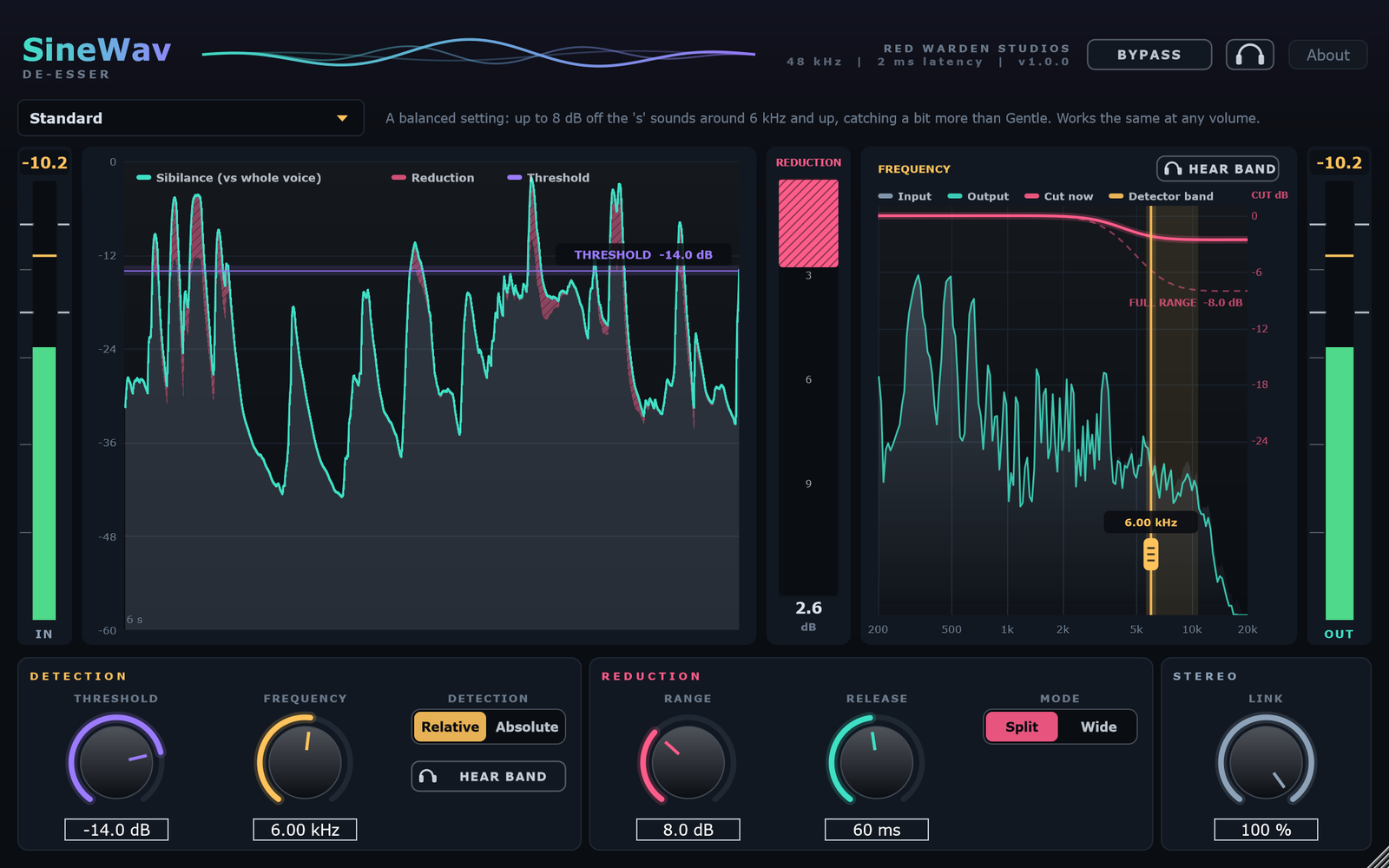
A de-esser smooths out sharp "s", "sh" and "t" sounds without dulling the rest of your voice.
The displays
- Sibilance graph (last 6 seconds). The line is the sibilance reading: how strong the "s" range is (compared with your whole voice in Relative mode). The hatched area is the reduction, and the Threshold line can be dragged.
- Reduction. The deepest cut right now, in dB.
- Frequency. Your sound from 200 Hz to 20 kHz: the grey shape is the input, the teal line the output. The Cut now curve shows what is being turned down at this moment, and the dashed curve the full Range. The amber Detector band is the range the de-esser listens to; drag its handle to move the Frequency.
- Hear band (in the Frequency view and under Detection) plays only the sound the detector is listening to, so you can hear exactly which part of your voice it reacts to.
| Control | Range | What it does |
|---|---|---|
| Threshold | -60 to 0 dB default -12 | The level the sibilance reading must pass before the voice is turned down. Lower it to catch more "s" sounds. |
| Frequency | 2 to 16 kHz default 6 kHz | Where the "s" range starts. The detector listens from here up, and in Split mode the cut is centered here. |
| Detection | Relative / Absolute | Relative compares the "s" range with the rest of your voice, so it works the same whether you speak softly or project. Absolute reacts to a fixed level, so the threshold depends on how loud you are. |
| Range | 0 to 24 dB default 6 | The deepest the de-esser may turn the voice down. In Split mode this is the cut at the top of the spectrum. |
| Release | 10 to 500 ms default 60 | How fast the volume comes back after an "s". Short is quick but can sound choppy; long is smooth. |
| Mode | Split / Wide | Split turns down only the high part of the sound, so the body of the voice is untouched. Wide turns the whole voice down briefly, the classic approach. |
| Link | 0 to 100% default 100 | Stereo only. At 100% both channels are turned down by the same amount, so the stereo image never moves. |
Start with a preset, press Hear band, and move the Frequency until what you hear is mostly the "s" sounds. Then lower the Threshold until the harsh ones are caught.
9. SineWav EQ-Octo
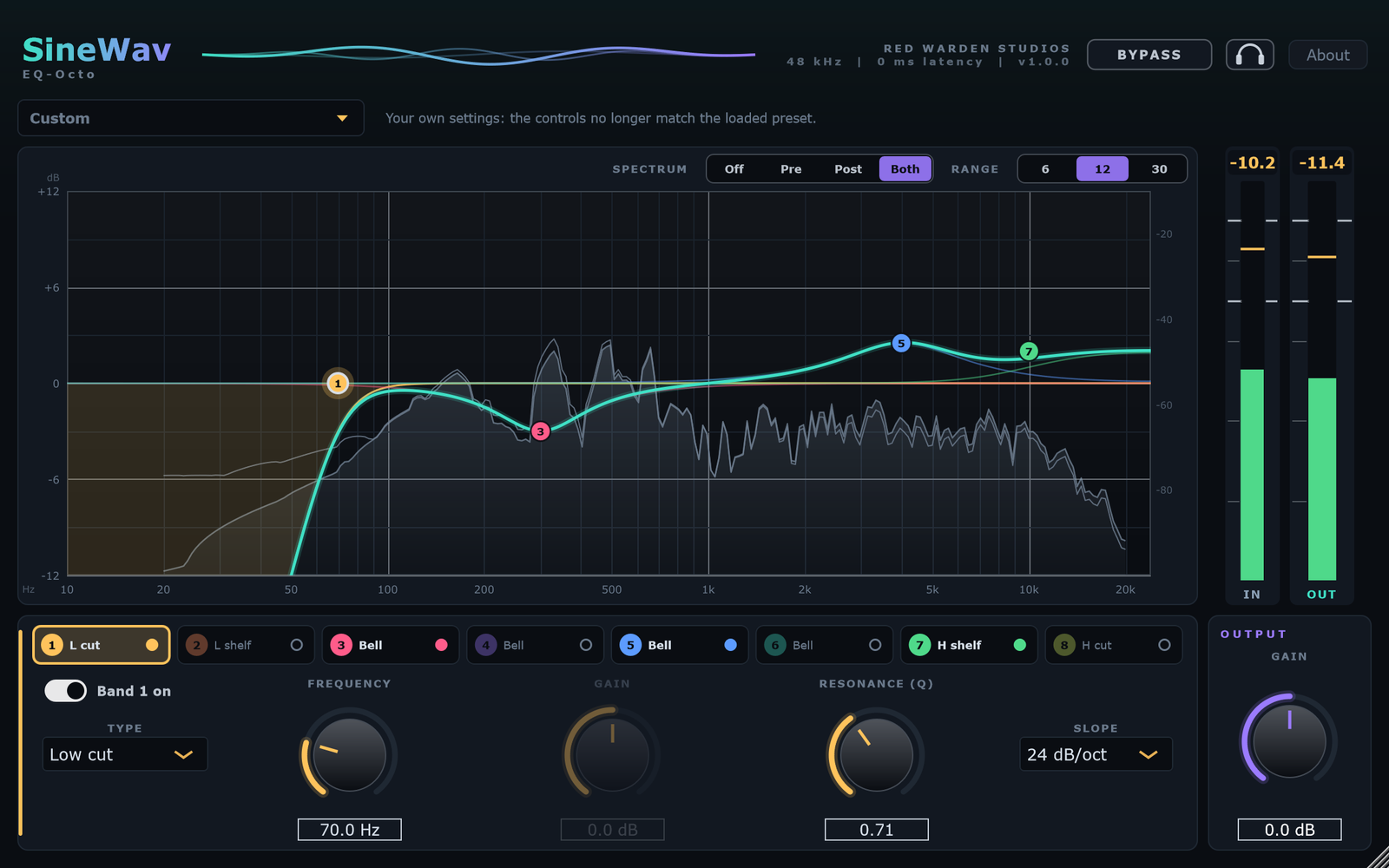
EQ-Octo gives you eight bands to shape your tone, drawn on top of a live picture of your sound. Each band has its own color and number on the graph and in the band row.
Working on the graph
- Double-click empty space to add a Bell band there (the next free band, lowest number first).
- Drag a point to set its frequency (left and right) and gain (up and down). Hold Shift for fine control.
- Scroll the mouse wheel over a point, or while dragging it, to change its Q (how wide it is).
- Double-click a point to switch that band off.
- Right-click a point to choose its type and slope.
Above the graph
| Control | Choices | What it does |
|---|---|---|
| Spectrum | Off / Pre / Post / Both | The live sound behind the curve. Pre is the sound going into the EQ, Post the sound coming out. Both shows Post filled and Pre as a thin line, so you can see what the EQ does. |
| Range | 6 / 12 / 30 dB | How many dB the graph shows above and below 0. This changes only the picture, not the sound. |
The band row and the selected band
The row under the graph holds the eight bands. Click a band to select it; click its dot to switch it on or off. The controls below always belong to the selected band.
| Control | Range | What it does |
|---|---|---|
| Band on | on / off | Switches the selected band on or off. |
| Type | see below | What the band does. |
| Frequency | 10 Hz to 30 kHz | The band's frequency. You can also drag its point, or click the number and type a value (1.2k works). |
| Gain | -30 to +30 dB | How much the band raises or lowers its frequency. Bell and shelves only; cuts and the notch have no gain. |
| Resonance (Q) | 0.1 to 18 | How narrow the band is: a higher Q is narrower. On a Low cut or High cut it adds a peak at the corner. |
| Slope | 6 to 48 dB/oct | Cuts only: how steeply a Low cut or High cut falls away. Steeper removes more and can sound less natural. |
| Output Gain | -24 to +24 dB default 0 | Level after all the bands. Double-click to put it back at 0. |
Band types
- Bell: boost or cut around a frequency.
- Low shelf / High shelf: raise or lower everything below or above a frequency.
- Low cut / High cut: remove everything below or above a frequency, with a slope from 6 to 48 dB per octave.
- Notch: a narrow cut, for a single whine or hum.
Listen (the headphones button) plays the region of the selected band: your sound before the EQ, through a filter at that band's frequency and Q. Sweep a narrow band with Listen on to find a ringing or boxy spot, then turn Listen off and cut it. Bypass wins over Listen.
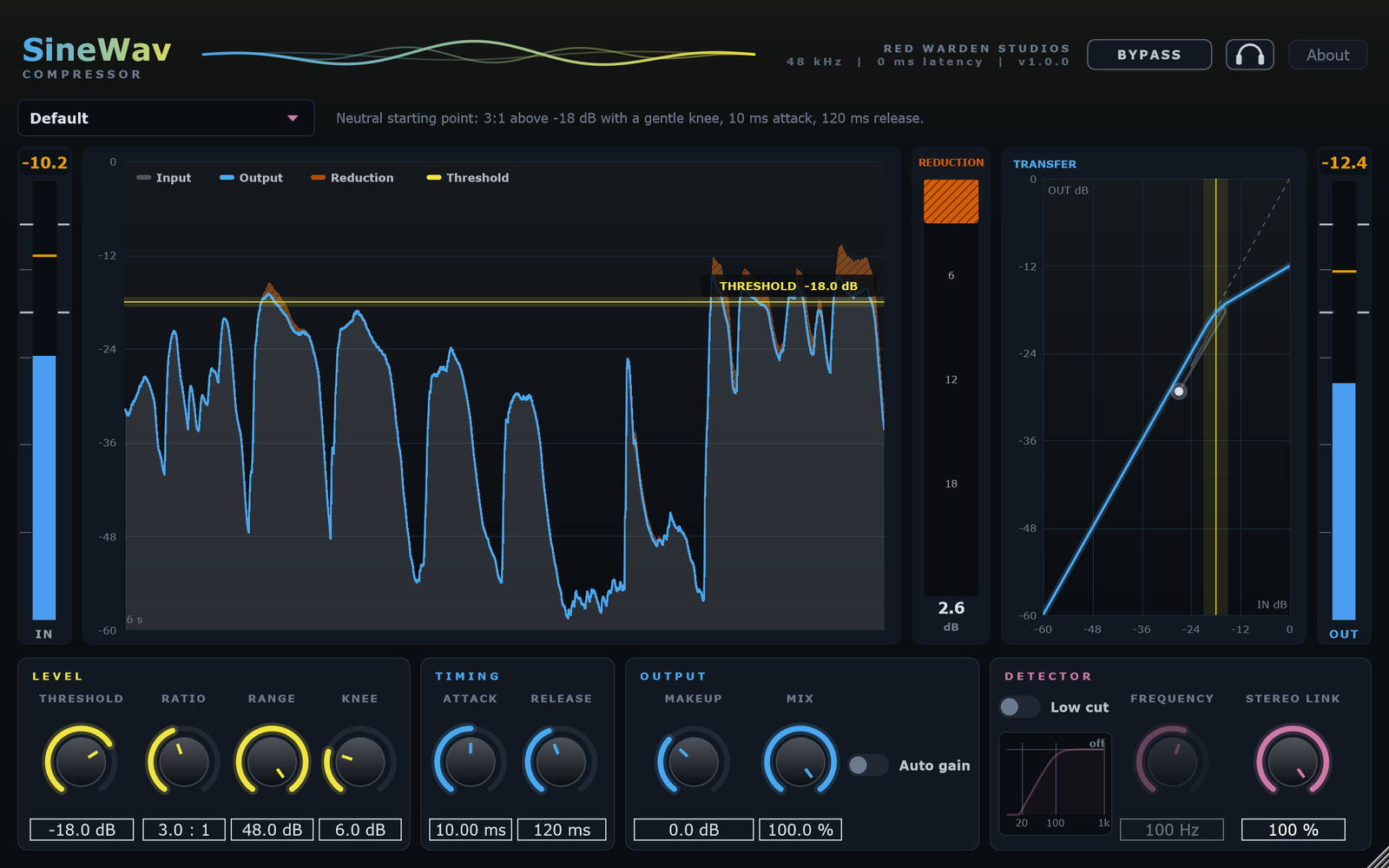
10. SineWav Compressor
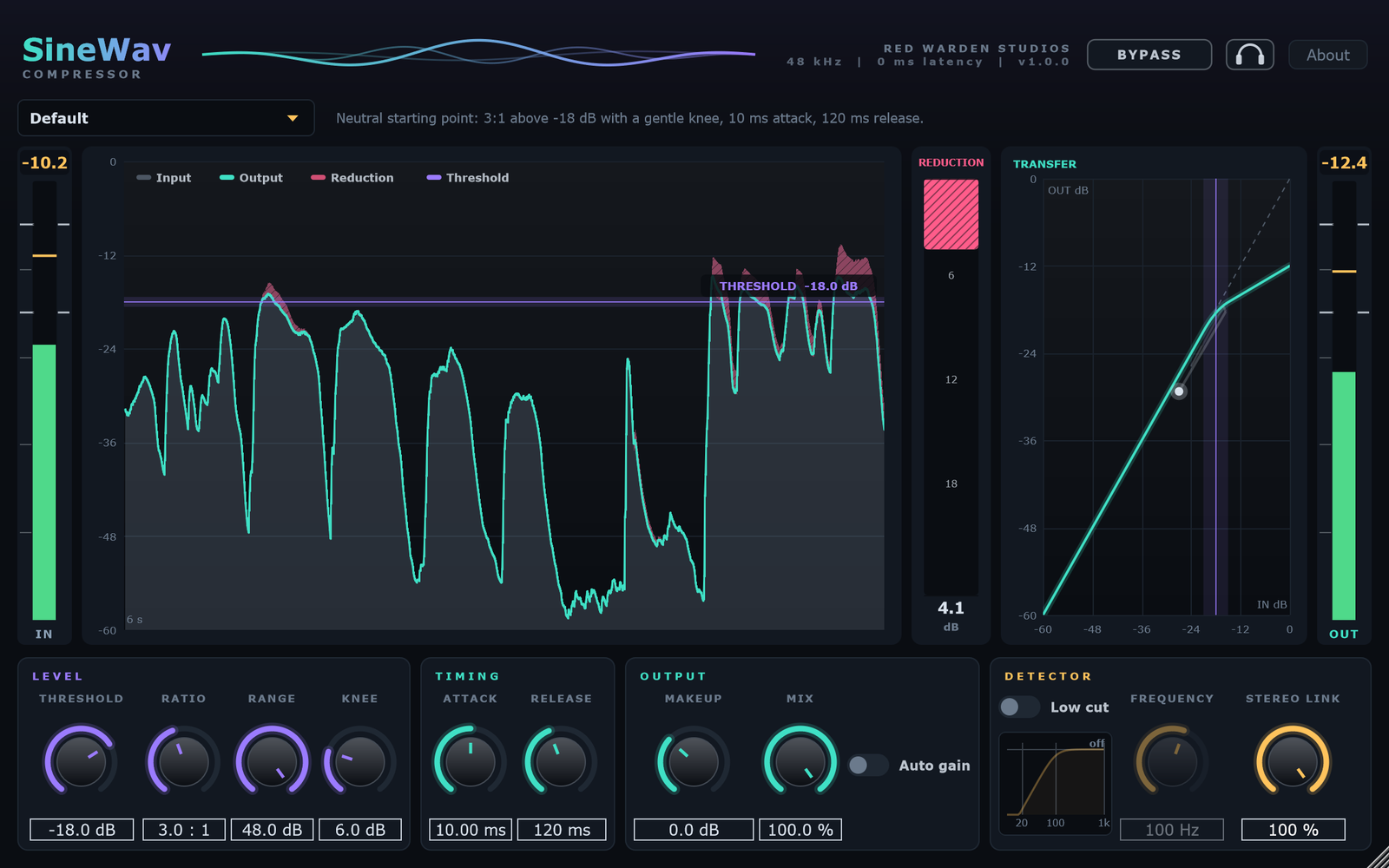
A compressor keeps your level steady: quiet words carry and loud moments do not jump out.
The displays
- Level graph (last 6 seconds). Input, output and the gain reduction, with the Threshold line you can drag.
- Reduction. How much the compressor is turning the signal down right now, in dB.
- Transfer. Input against output. The dashed line marked Max is the floor set by Range.
| Control | Range | What it does |
|---|---|---|
| Threshold | -60 to 0 dB default -18 | The level above which the compressor starts turning the signal down. |
| Ratio | 1:1 to 20:1 default 3:1 | How firmly the signal above the threshold is turned down. At 4:1, every 4 dB over the threshold comes out as 1 dB over. |
| Range | 0 to 48 dB default 48 | The most the compressor may ever turn down. At 48 there is effectively no limit. |
| Knee | 0 to 24 dB default 6 | How gently it eases in around the threshold. 0 dB switches on abruptly; a larger knee is smoother. |
| Attack | 0.1 to 100 ms default 10 | How fast it reacts when the signal gets loud. Short catches peaks; long lets the start of each sound through. |
| Release | 10 to 2000 ms default 120 | How fast it lets go after the signal gets quieter again. |
| Makeup | -12 to +24 dB default 0 | Extra volume after compression, to make up for what it took away. Switched off while Auto gain is on. |
| Mix | 0 to 100% default 100 | Blend between the untouched input (0%) and the compressed signal (100%). In between is parallel compression. |
| Auto gain | default off | Sets the makeup for you from the compression curve, so your output level stays roughly steady while you adjust. |
| Low cut | default off | Stops low thumps and rumble from triggering the compressor. It changes only what the detector listens to, never the sound you hear. |
| Frequency | 20 to 300 Hz default 100 | Where the detector low cut starts. |
| Stereo Link | 0 to 100% default 100 | Stereo only. 100% uses one gain for both channels; 0% treats them independently. |
The two Two-Stage presets are meant for two Compressors in a row: the first (A: Level) evens out your level slowly and gently, the second (B: Peaks) catches the fast peaks.
11. SineWav Limiter
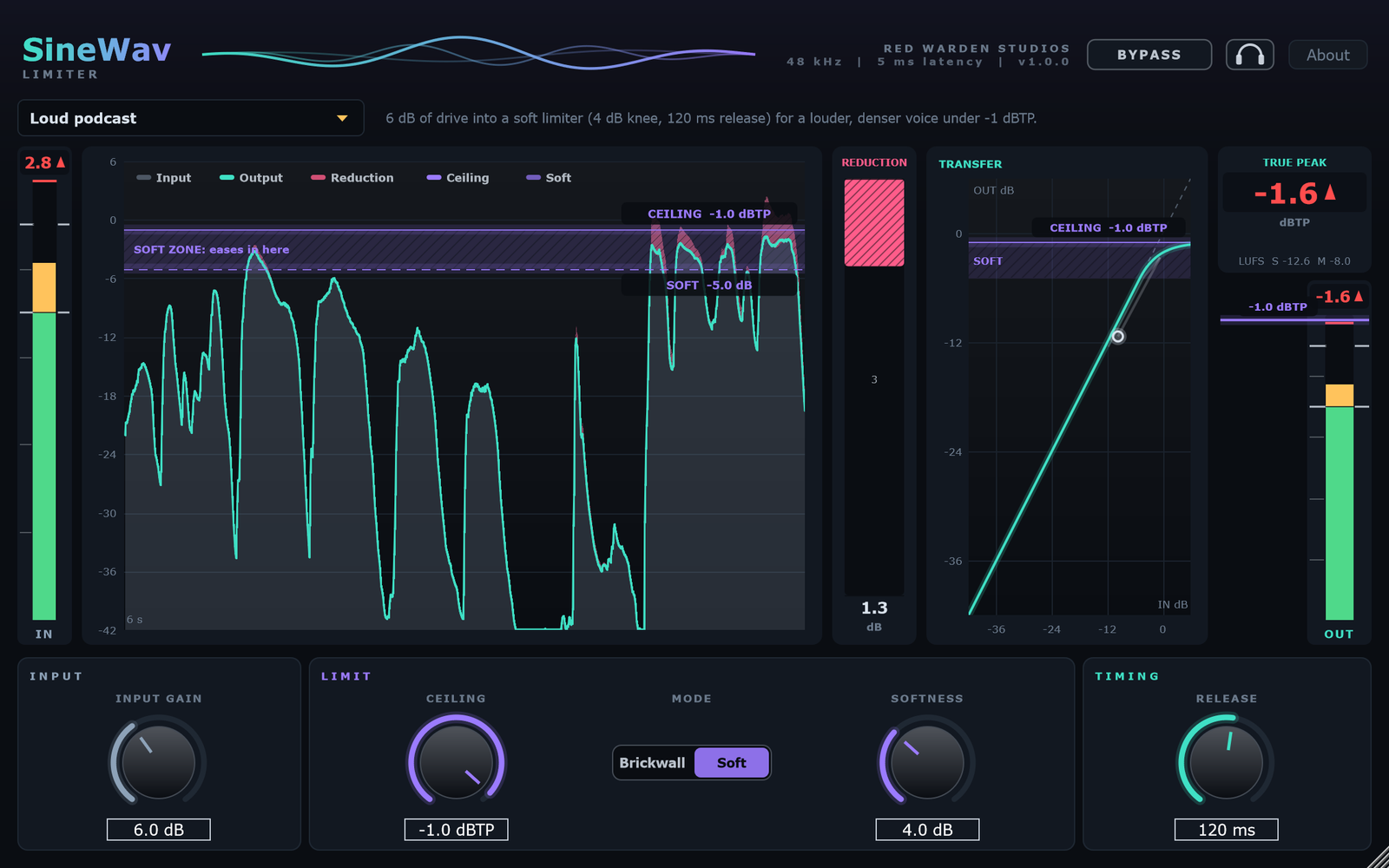
A limiter sets a ceiling your audio never passes: a laugh, a shout or a hit snare stays safe. SineWav Limiter is true-peak safe: it also catches the peaks that happen between samples, which ordinary peak limiters miss.
The displays
- Level graph (last 6 seconds). Your input (after Input Gain), the output and the reduction, with the Ceiling line. In Soft mode the shaded soft zone below it shows where the limiter starts easing in.
- Reduction. How much the limiter is turning the signal down right now, in dB.
- Transfer. Input against output, with the ceiling and the soft zone.
- True Peak. The highest true peak sent out since you last reset it, in dBTP; click it to reset. Under it, LUFS S (short-term) and M (momentary) show your loudness.
- OUT meter. Carries the ceiling as a line. Drag it up or down, or double-click it to reset to -1.0 dBTP.
| Control | Range | What it does |
|---|---|---|
| Input Gain | -12 to +36 dB default 0 | How much the signal is turned up before it reaches the limiter. Turn it up to make your audio louder: the limiter keeps the peaks under the ceiling. |
| Ceiling | -24 to 0 dBTP default -1.0 | The level nothing may pass, in true peak. |
| Mode | Brickwall / Soft default Soft | Brickwall does nothing until the level reaches the ceiling, then stops it dead there. Soft starts easing in a few dB below the ceiling for a gentler sound that still never goes over. |
| Softness | 0 to 12 dB default 3 | Soft mode only: how many dB below the ceiling the limiter starts to ease in. A bigger number is gentler. |
| Release | 1 to 1000 ms default 80 | How fast the volume comes back up after the limiter has turned it down. Short is lively but can pump; long is smoother. |
-1 dBTP is a safe ceiling for streaming and most uploads. Some broadcasters ask for -2 dBTP; the Broadcast -2 dBTP preset sets that.
12. Using SineWav in OBS
OBS Studio loads VST2 plugins only, and SineWav is VST3. A free plugin host called atkAudio bridges the two. atkAudio is made by a third party; it is free and open source. Get it from its OBS forum page. You need OBS Studio 31.1.1 or newer, 64-bit.
- Install SineWav with OBS closed (see Install).
- Activate in the SineWav app (see Activate this PC).
- Install atkAudio: run its Windows installer, then start or restart OBS.
- Add it to your mic. In OBS's Audio Mixer, open your mic's menu, choose Filters, click + and choose atkAudio Plugin Host. Open it and pick a SineWav plugin from the VST3 list.
- One filter per plugin. Add another atkAudio Plugin Host filter for each SineWav plugin you want. OBS runs filters from top to bottom; drag a filter to reorder it.
- Monitor from your interface. Listen to your mic directly from your audio interface (or its direct-monitoring switch), not through OBS. SineWav's latency then only affects what your stream hears, never what you hear.
- Check your levels on each plugin's IN and OUT meters, then on OBS's mixer.
If atkAudio's full plugin scan stops partway, scan only the SineWav plugins. On our test PC one unrelated third-party instrument made the full scan stop.
13. Using SineWav in REAPER
- Install SineWav with REAPER closed, then activate it in the SineWav app.
- Open REAPER. It finds new plugins in
C:\Program Files\Common Files\VST3\on its own. If SineWav does not appear, open Options > Preferences > Plug-ins > VST and click Re-scan. - Click a track's FX button and type SineWav to find the plugins.
- Add the plugins you want. REAPER runs a track's effects from top to bottom; drag them to reorder.
REAPER reads the latency each plugin reports and keeps your tracks in time automatically. When you record through a plugin with latency (NS, Gate, De-esser or Limiter), monitor from your interface for the most natural feel.
14. Latency
Some plugins look a few milliseconds ahead to do their job. Each one reports its latency to the host, so a host that handles latency (REAPER does) keeps everything in time.
| Plugin | Added latency |
|---|---|
| SineWav NS | 30 ms |
| SineWav Gate | 10 ms |
| SineWav Limiter | about 5.4 ms |
| SineWav De-esser | 2 ms |
| SineWav EQ-Octo | none |
| SineWav Compressor | none |
| SineWav Expander | none |
On a live stream the latency only affects what your audience hears. Monitor your mic directly from your audio interface and you will never hear it.
15. Troubleshooting
The plugin shows "Not activated"
Open the SineWav app. If your license is not listed, add it (see Activate this PC). If it is listed, click Check now, then close and reopen the plugin. A plugin that is not activated passes your audio through untouched; it is not broken.
"This key is already active on its maximum number of PCs"
All 3 activations are in use. Deactivate a PC you no longer use from the app's Activations list or the My activations page, then add the key again.
"That license key wasn't recognized"
Copy the key again from your receipt email, with no spaces before or after it. If it still fails, contact support.
"That key is for a different Red Warden Studios product"
The key belongs to another of our products. Use the key from your SineWav receipt.
"This PC's activation for that key is gone"
This PC was deactivated from somewhere else. Click Remove next to the license, then add the key again.
The plugins do not show up in my host
- Check that the files are in
C:\Program Files\Common Files\VST3\. If not, run the installer again. - Rescan plugins in your host (REAPER: Options > Preferences > Plug-ins > VST > Re-scan).
- In OBS, SineWav needs atkAudio. OBS cannot load VST3 plugins without it.
The host's plugin scan stops or crashes
Another plugin on your PC can stop a full scan. Scan only the SineWav plugins, or move the problem plugin out of the VST3 folder while you scan.
No sound, or only a strange sound
- Check that the headphones button (Listen) is off. Listen replaces the output with a monitoring signal.
- Check that BYPASS is not on when you expect processing, or on when you expect none.
- Gate: if the gate never opens, its Threshold is above your voice. Lower the OPEN line until your words open it.
My voice sounds behind my video
NS adds 30 ms. Most streams never notice, but with several plugins you can line things up with OBS's audio Sync Offset for your mic: clap on camera and adjust until sound and picture match.
The installer says a file is in use
Close your DAW, OBS and any other program that loads plugins, then run the installer again.
16. Support
Email support@redwardenstudios.com. Tell us which plugin, your host (OBS or REAPER, and its version) and your SineWav version (shown in each plugin's header and in About). For a license question, include the last four characters of your key; we will ask if we need more.
See also: Download · My activations · Using SineWav in OBS · SineWav terms · Third-party notices