User manual
Reads your manuscripts and keeps track of who is who, what happened, and when, with notes that point back to the paragraph they came from.
No section matches your search. Try fewer words, or a word the app uses on screen, such as Settings, Chapters or Brainstorm.
Welcome
is a story memory for your series. It reads your manuscripts with your own AI key, writes notes on every chapter, and keeps characters, continuity and open threads together where you can look them up.
The reader is asked to cite the paragraph behind what it writes. Where a note says something happened, a small ¶ citation names the paragraph it came from, and one click shows you that paragraph, highlighted, in your own words. The app checks some of this for you, but not all of it, so check anything you plan to rely on.
This manual is also inside the app. Press F1 to open it at the screen you are on.
What it does
- Reads each chapter of each book you add, and writes notes with seven parts: a summary, story time, characters, key moments, world and lore, threads, and possible continuity issues.
- Asks the reader to cite the paragraph behind each note, then checks the quotes in those notes against your text. The check catches many slips, not all of them.
- Gathers every note about a character across all your books, so you can see where someone appears and what happened to them.
- Lists possible contradictions for you to look at.
- Keeps your own private notes for the next session, and lets you ask questions about your story in Brainstorm.
What it does not do
- It does not write for you. There is no generated prose and no sentence completion.
- It never changes your manuscript. It reads your Word files and leaves them exactly as they are. You keep writing in Word.
Words used in this manual
- Project
- A folder that holds the readings and notes for one series.
- Key
- An API key from an AI provider such as Anthropic, OpenAI, Google or xAI. It lets use your account with that provider.
- Reading
- One pass in which an AI reader goes through your chapters and takes notes.
- Reader
- The AI model doing the reading. It sees one chapter at a time, or one piece of a very long chapter.
- Citation
- A ¶ chip that names the paragraphs a note came from.
Quick start
Five steps from a blank start screen to your first notes. Each step links to the section with the details.
- Create a project. On the start screen, choose New project, type your series name, then choose Choose a folder and create. More about projects
- Add your books. On Read manuscripts, choose Add a book… and pick your Word (.docx) files, in reading order. More about books
- Add a key. Open Settings, find your provider under API keys, choose Add key, paste the key and choose Save key. More about keys
- Read. Back on Read manuscripts, choose Check what's new to see what will be read, read the notice about what leaves your computer, then choose Start reading. More about reading
- Explore. Open Overview for the whole series at a glance, then Chapters, Characters and Continuity. When you want to think out loud, try Brainstorm on the Next session screen. Overview, Chapters, Brainstorm
Start reading stays greyed out until a key is saved for the provider you picked (a local model needs none) and you have chosen I understand on the data notice. What the notice says
Install
is a Windows desktop app. Install it using the instructions that came with your download, then open it.
The first screen you see is the start screen, described under Projects. To read a manuscript you need a key from at least one AI provider, or a model running on your own computer, which you set up in Settings. You do not need a Red Warden Studios account.
Updates
checks for a newer version in the background, a few seconds after it opens and every few hours after that. If one is found, it downloads quietly while you work. You do not have to do anything, and a failed check (for example when you are offline) is simply tried again later without a message.
When an update has downloaded, a small Update ready – Restart chip appears at the top of the window. Restarting is your choice: nothing restarts on its own while the app is open. If you choose Restart while a reading or a Brainstorm answer is in progress, or while something you changed is not saved yet, the app tells you to finish first and stays open. If you ignore the chip, the update installs the next time you quit .
Each download is checked before it is installed: it must be signed by Red Warden Studios, and an installer signed by anyone else is refused. Your projects, notes and settings are not touched by an update.
Projects
A project holds everything for one series: the notes from each reading, a local copy of the parsed text of your books, your private notes, your Brainstorm conversation, and a small settings file with your book list, titles and chosen model. A project is a folder on your computer, so you can move it, back it up or open it from somewhere else.
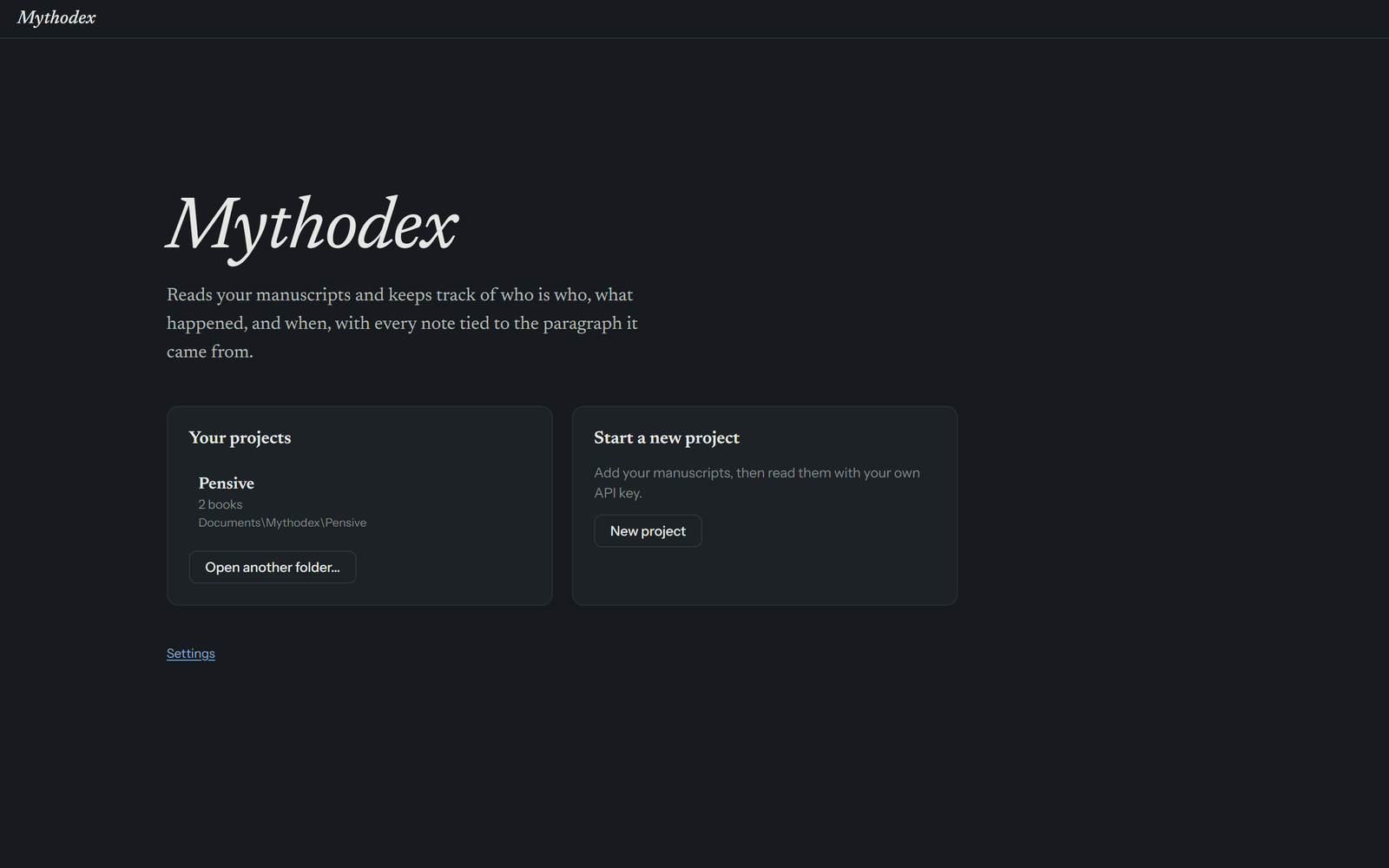
The start screen
The start screen has two cards. The first time you open , the first card reads Open a project and offers Open folder…. Once you have opened a project, it becomes Your projects.
Your projects
Each entry shows the series name, how many books it holds, and the last part of its folder path. Select an entry to open it. The list remembers the twelve projects you opened most recently, newest first.
If a project's folder has been moved, renamed or deleted, the entry shows Folder not found with a Remove from list link. Removing it from the list does not touch any files. To open the project from its new place, choose Open another folder… and pick the folder.
Open another folder
Choose Open another folder…, then pick a project folder in the dialog titled Open a project folder.
Start a new project
Choose New project. Type a Series name (if you leave it empty, the project is called Untitled series), then choose Choose a folder and create and pick a folder for the project's results. You land on Read manuscripts, ready to add your books. Press Enter in the name box to create the project without clicking.
Moving and backing up a project
On Read manuscripts, the Project folder row shows where the project lives. Open shows the folder in Windows. Move… asks where to keep the project. On the same drive the folder is moved. On another drive it is copied, the original stays where it was, and you are told so. Delete the old copy yourself once you are happy with the new one. You cannot move a project while a reading is running.
A project does not contain your Word files. It remembers where each one is, so keep them where the project can find them, and back them up as you always do. It does keep its own copy of the text it parsed from them, so treat the project folder as private. See Privacy.
Your keys are not inside the project folder either. They stay on this computer, so on another computer you add them again in Settings.
To work on another series, choose Switch project at the bottom of the sidebar. It is greyed out while a reading runs.
Read manuscripts: adding books
The Read manuscripts screen is where you manage your books and start readings. Its Project section holds the Series name, which you can edit, and the project folder. Its Manuscripts section lists every book in the project.
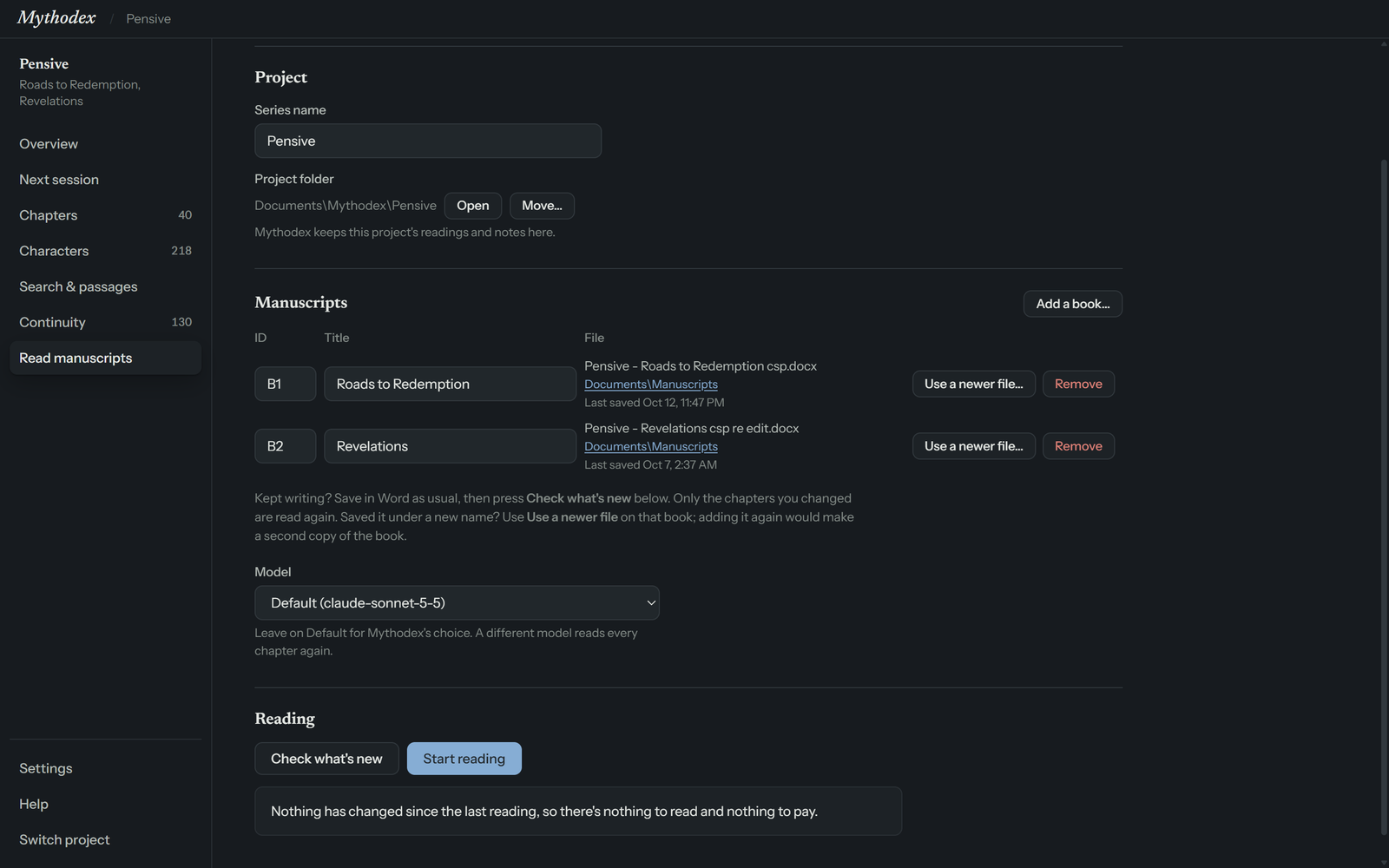
Add a book
Choose Add a book… and pick one or more Word (.docx) files. Word files are the only format for now; more formats are coming. Add each book in the series in reading order.
Each book becomes a row with three parts:
- ID is a short tag that citations use, such as B1 and B2. It is one to four capital letters followed by a number, and each book needs its own. The app fills in B1, B2 and so on for you.
- Title starts as the file name. Rename it to the book's real title.
- File shows which Word file the book comes from.
If an ID is not valid, the screen says Book ID "x" needs to be 1-4 capital letters then a number, like B1. Citations use it. If two books share one, it says Two books share an ID. Each book needs its own.
Changing a book's title
A title is part of what identifies a reading. If you change a book's title, that book is read again the next time you read, and your provider charges for it. Settle your titles before the first reading.
Use a newer file
If you saved a new version of a book under a different file name, choose Use a newer file… on that book and pick the new file. The ID and title stay the same, and chapters whose text did not change are reused rather than read again. Adding the new file with Add a book… would create a second copy of the book instead.
Which file is read, and when it was saved
Under each file name, shows the folder the file is in and when it was last saved. Click the folder to see the file in File Explorer. If the file has gone, the line says File not found. The time updates when you come back to the window after saving in Word.
If Word last opened a newer copy of the same file name from a different folder, a notice says so. Choose Use that copy to read that one instead, or Dismiss to hide the notice until you restart .
Remove
Remove takes a book out of the project. It does not delete your Word file.
Adding, removing and renaming books is turned off while a reading is running.
How your file is read
Knowing how reads a Word file helps you understand the paragraph numbers and chapter names you will see.
- Paragraph numbers. Every non-empty Word paragraph is counted from the top of the file, front matter included. These numbers are the ones citations use.
- Chapters. Lines such as Chapter 3, Prologue, Epilogue or Interlude mark chapters, optionally under Part or Book headings. If there are none, Heading 1 paragraphs are used, then hard page breaks, and if there are none of those, the whole book is one unit. A title on the same line or on the next short line becomes the chapter title.
- Opening pages. Whatever comes before the first chapter is shown as Opening pages.
- Scenes and dates. A blank centered paragraph or a line such as * * * is a scene break. Short lines that are mostly a date or time, such as July 20th, 2007, help the reader place scenes in story time.
- Not read yet. Tables and text boxes are skipped, and you get a warning. Tracked changes are read as if you had accepted them, also with a warning. Headers, footers, footnotes and comments are skipped, and the app does not warn you about them, so move anything that matters into the body text.
Check what's new shows any warnings about a book, for example that a table was skipped.
License and free mode
is a one-time purchase. Without a license key it runs in free mode, so you can try it on your own book before you buy. The free mode line at the top of the window says where you stand.
What free mode includes
- One project that holds one book.
- One full reading of that book.
- 10 Brainstorm questions in all.
Everything a reading found stays yours to look at, with or without a key: the chapter notes and their citations, continuity, the overview, characters and Next session. Nothing is hidden or deleted when a limit is reached. What a limit stops is starting something new: a second reading that sends chapters to an AI provider, an eleventh question, a second book or a second project. The message appears right where you tried it, with Enter a license key and a buy link.
Checking what's new never costs anything. A reading that has nothing to read, for example after you changed only a few words in a chapter, sends nothing to a provider and is always allowed.
Activate a key
- Open Settings. The License section is at the top.
- Paste the key from your purchase email and choose Activate.
Activating needs the internet once. After that works offline and never checks in again. A license works on up to 3 of your PCs.
Move to another PC
On the PC you are leaving, open Settings and choose Deactivate this PC. That PC goes back to free mode and frees its place, and you can activate the same key on another PC. If you see that your key is already active on 3 PCs, choose Show my activations to see them and deactivate one from there, even from a PC that is not licensed yet.
Deactivating needs the internet. If it cannot reach the license server, this PC stays activated and you can try again when you are online.
Keys
reads with your own account at an AI provider, so it needs your key. Open Settings and look under API keys. There is one row for each provider: Anthropic (Claude), OpenAI (ChatGPT), Google (Gemini) and xAI (Grok). Add a key for each provider you want to read with.
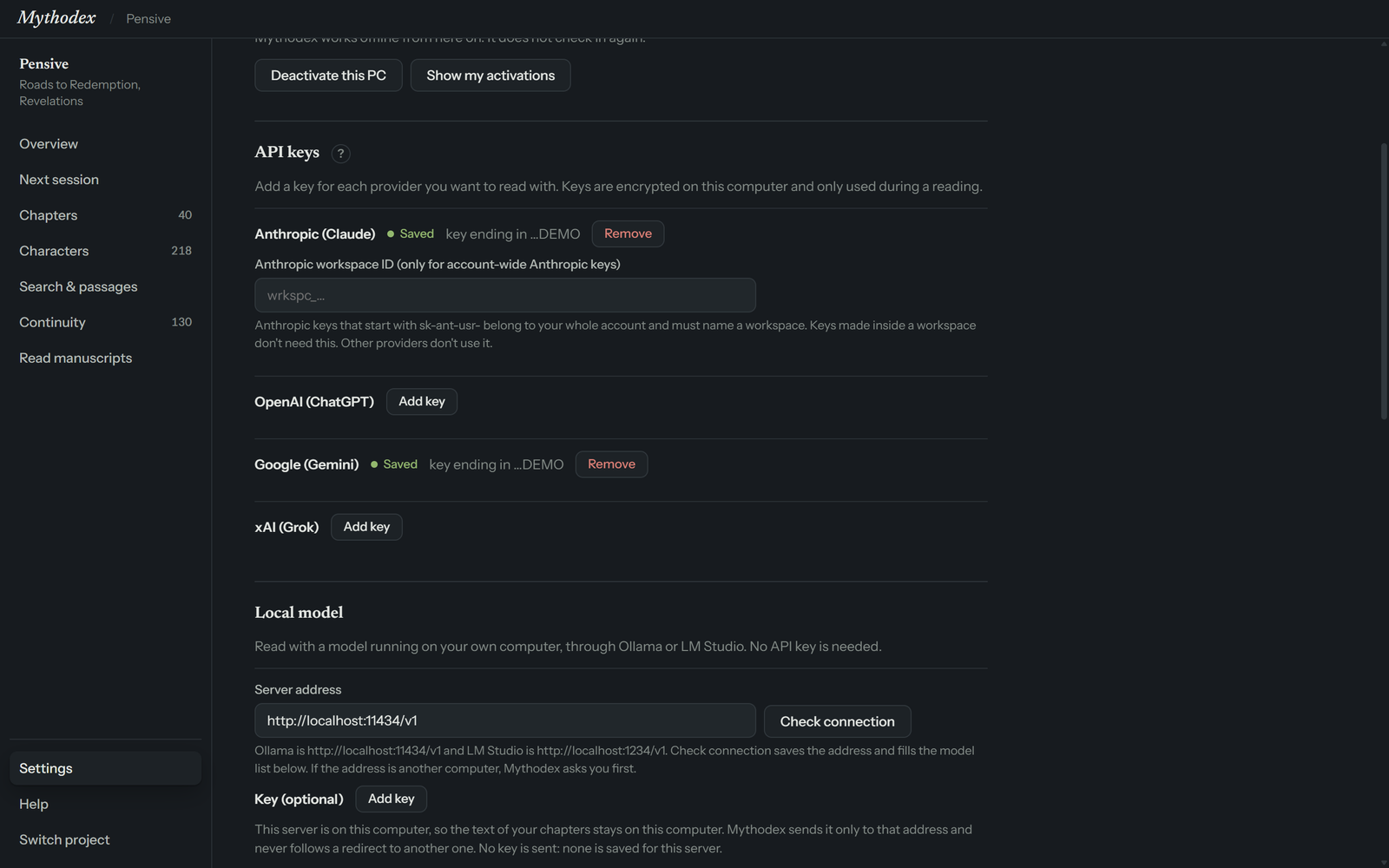
Add a key
- On the provider's row, choose Add key.
- Paste the key into the box. It is hidden as you paste.
- Choose Save key, or press Enter.
When it works, the row shows Saved and the last four characters of the key, so you can tell which key it is. To replace a key, choose Remove and add the new one.
Provider key formats, and the message you see when a key does not fit:
| Provider | What the key looks like |
|---|---|
| Anthropic (Claude) | Starts with sk-ant-. Create it in the Anthropic Console, inside a workspace. |
| OpenAI (ChatGPT) | Starts with sk-. |
| Google (Gemini) | No fixed beginning. It is only checked for being another provider's key. |
| xAI (Grok) | Starts with xai-. xAI shows the key only once, right after you create it. The Key ID in xAI's key list is a different code and will not work. |
A key must have no spaces or line breaks inside it and be at least 20 characters long. If you paste a key under the wrong provider, tells you which provider it looks like.
Anthropic workspace ID
Anthropic keys that start with sk-ant-usr- belong to your whole Anthropic account and must name a workspace. Paste the workspace ID, which starts with wrkspc_, into the box labeled Anthropic workspace ID (only for account-wide Anthropic keys) under the Anthropic row. Keys made inside a workspace do not need it, and no other provider uses it. If you save an account-wide key, the row reminds you that it also needs the workspace ID.
Local models need no key
You can also read with a model that runs on your own computer, through Ollama or LM Studio. That needs no key and no account. In Settings, under Local model, type the server address: http://localhost:11434/v1 for Ollama, http://localhost:1234/v1 for LM Studio. Choose Check connection. If the server answers, its models fill the list under Models, where you tick the ones you want and save as usual. If it does not answer, you see Couldn't reach a local model server and the address it tried.
A key is optional. Add one under Key (optional) only if your server asks for it.
The model needs a context length of at least 32,000 tokens. If a server cuts a chapter short to fit a smaller one, the reading fails with a message that says so, and nothing is saved as read. How well a model reads depends heavily on its size, and local readings are slow. Brainstorm needs a cloud model for now, so a local model does not appear in its Answer with list.
If the address is another computer, not the one you are using, stops and asks Send manuscripts to another computer? before it does anything. It sends your chapters there only if you say yes, and it asks again if you change to a different computer or port.
How keys are stored
A saved key is encrypted by Windows on this computer. can save a key and remove one, but it cannot show a saved key again, not even to you. A key is used only when you ask for something that needs the provider: a reading, a model sync, or a Brainstorm answer. If Windows cannot encrypt the key, it is not saved and the app says so. If a saved key cannot be used any more, the row says This saved key can't be used. Remove it and add it again.
Your provider bills you directly for what you read. shows token counts, never prices. See Reading.
Models
Each provider offers many models. The Models section of Settings is where you choose which ones you want to see. The models you tick appear in the model lists on Read manuscripts and in Brainstorm's Answer with list. There is one exception, described at the end of this section: Anthropic's default model.
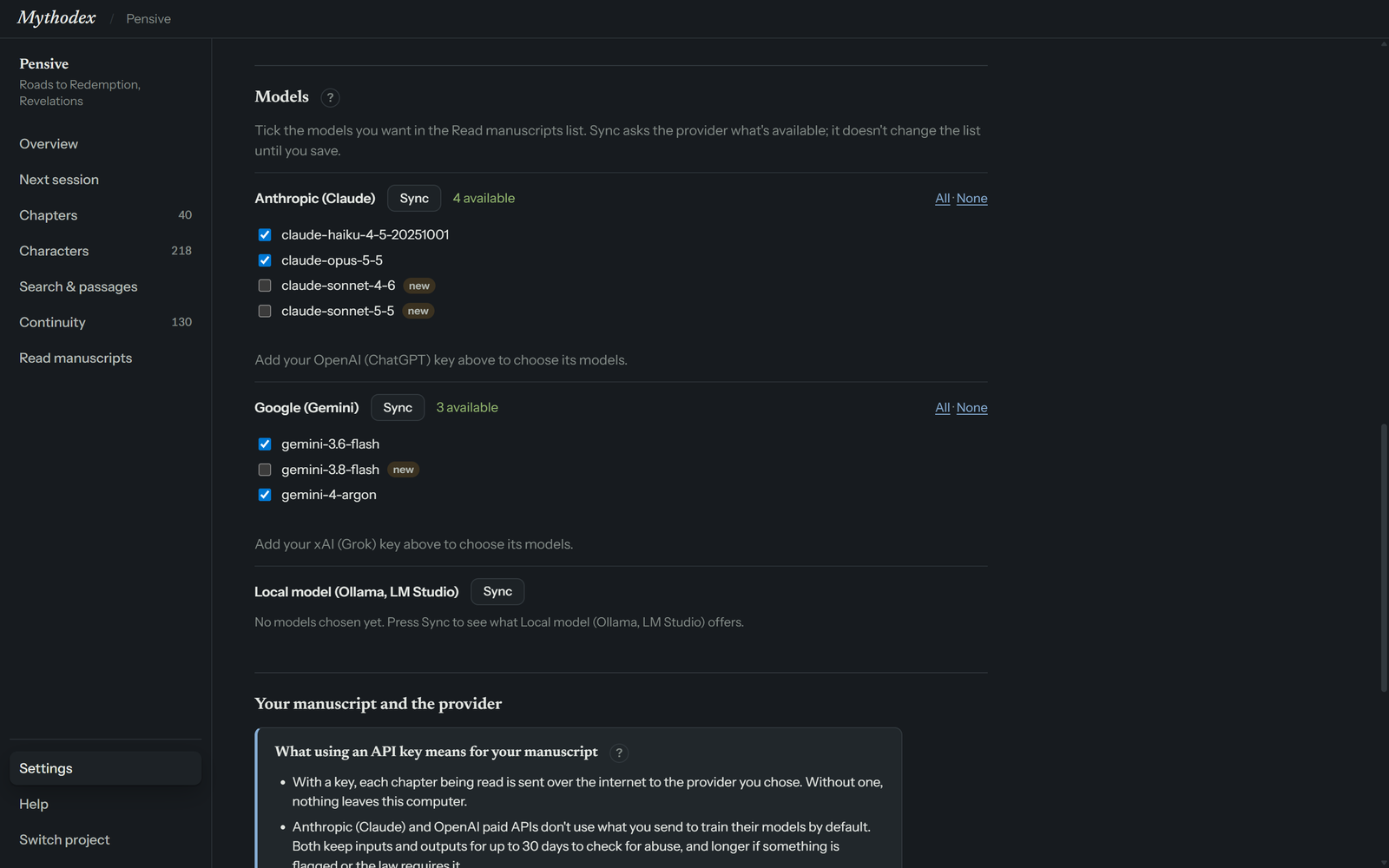
- Models are listed for each provider whose key you have saved. For the others, a line asks you to add the key first.
- Choose Sync on a provider. asks the provider which models are available, using your key (and, for an account-wide Anthropic key, your workspace ID), then shows how many it found. No manuscript text is sent. Sync does not change your list until you save.
- Tick the models you want. All and None tick or clear the whole list. A small new tag marks a model that appeared since your saved list.
- Choose Save model list in the bar that appears at the bottom, or Discard to drop your changes.
The first time you sync a provider, everything is ticked so the list is not empty. If you tick nothing for a provider, the screen tells you that provider will not appear in the model list.
For Anthropic, one model is the default. It is shown once, as Default followed by the model's name in brackets, and it is offered on Read manuscripts whenever an Anthropic key is saved, even if you never ticked it or your saved Anthropic list is empty. For every other provider you must pick a model before reading, or the app says Pick a model for Google (Gemini) first. with the provider's own name.
What leaves your computer
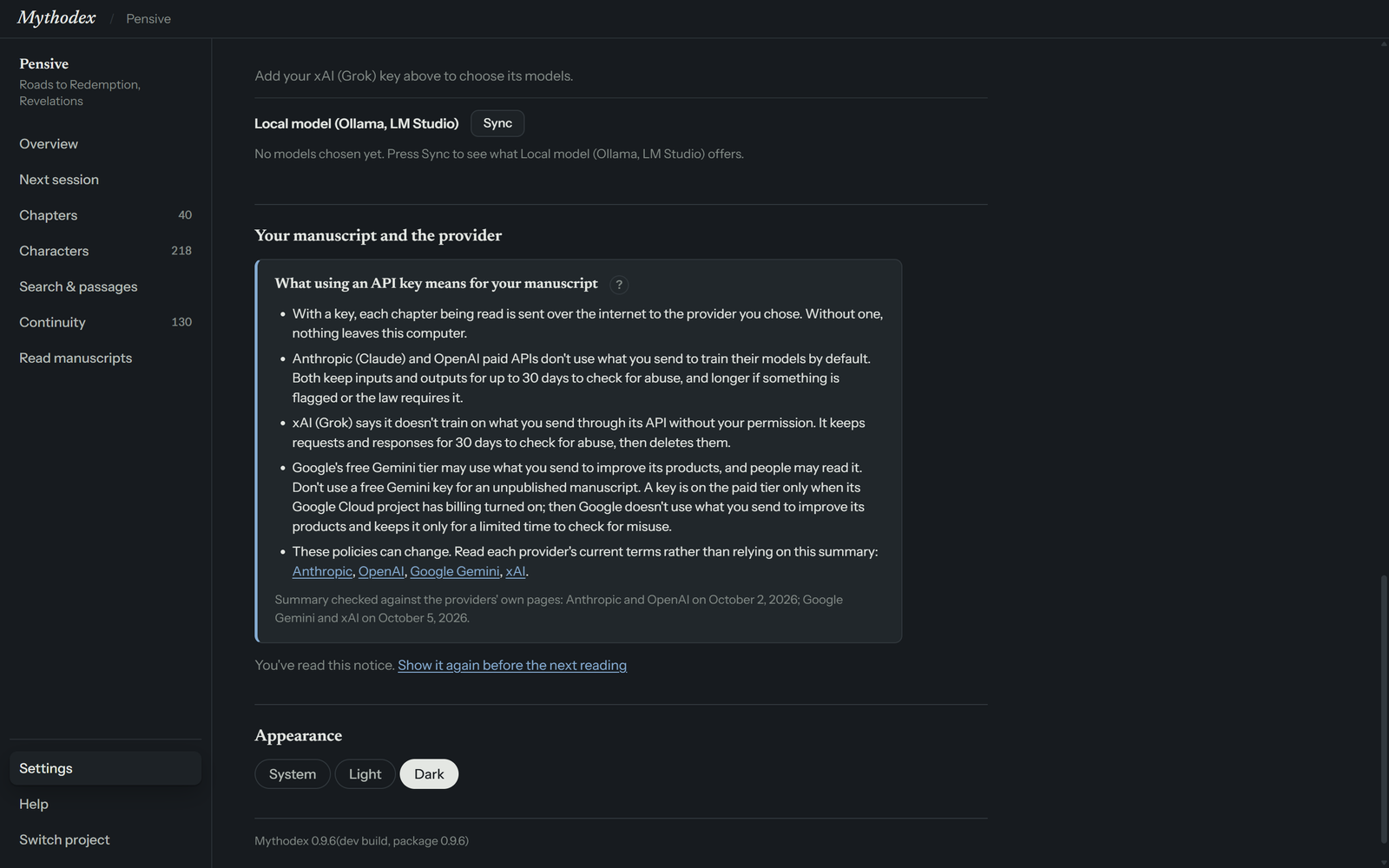
With a key, each chapter being read, or each piece of a long chapter, is sent over the internet to the provider you chose. Without a key, and with a local model on this computer, the app sends no manuscript text off this computer. Before your first reading, shows a notice that summarizes what each provider says it does with that text. You read it on Read manuscripts or in Settings and choose I understand. Until then, Start reading stays off, and Brainstorm asks you to accept the notice first.
What the notice says
- Anthropic (Claude) and OpenAI paid APIs do not use what you send to train their models by default. Both keep inputs and outputs for up to 30 days to check for abuse, and longer if something is flagged or the law requires it.
- xAI (Grok) says it does not train on what you send through its API without your permission. It keeps requests and responses for 30 days to check for abuse, then deletes them.
- Google's free Gemini tier may use what you send to improve its products, and people may read it. Do not use a free Gemini key for an unpublished manuscript. A key is on the paid tier only when its Google Cloud project has billing turned on. Then Google does not use what you send to improve its products and keeps it only for a limited time to check for misuse.
- These policies can change. Read each provider's current terms rather than relying on this summary: Anthropic, OpenAI, Google Gemini, xAI.
The summary in the app was last checked against the providers' own pages on October 2, 2026 for Anthropic and OpenAI, and on October 5, 2026 for Google Gemini and xAI.
Local models
With a local model, the notice is about the server's address instead. If the address is on this computer (localhost, 127.0.0.1 or ::1), the text of your chapters stays on this computer. sends it only to that address and does not follow a redirect to another one. If the address is another computer, the notice names it and says your chapters are sent there: use it only if you trust whoever runs it. asks you to confirm that before it sends anything.
If you saved a key for the server, it is sent to that server with each request. If you did not, none is sent. The cloud providers' policies above do not apply to a local reading; the person who runs the server decides what happens to the text there.
What else is sent
Brainstorm sends the reader notes for your whole series, along with your question and the last few turns of the conversation, to the provider that answers. It does not send your manuscripts or your private notes. Syncing a model list sends your key, and for an account-wide Anthropic key your Anthropic workspace ID, to ask the provider which models it offers. It sends no manuscript text and no notes.
Showing the notice again
After you accept, Settings shows You've read this notice. with a Show it again before the next reading link. Choose it and the notice returns, and reading stays off until you accept again.
Reading
A reading sends your text to the model you chose, in chunks, and saves the notes it writes. Each chapter is one chunk, your opening pages are another, and a very long chapter is split into pieces near scene breaks. Several chunks are read at the same time. The Reading section at the bottom of Read manuscripts is where you start one.
Choose a model
The Model dropdown groups the models you ticked in Settings by provider, for the providers whose key you saved. Anthropic's default is always offered while an Anthropic key is saved. Leave it on Default to use 's choice. A different model reads every chapter again, because notes from one model are not reused for another. Browsing the list changes nothing. When you pick a different model, a note under the dropdown says that chapters already read stay as they are and the next reading re-reads every chapter with the new model. Choose Use that model to save it with the project, or Cancel to keep the current one.
If there is nothing to choose from yet, a line sends you to Settings to add a key and pick models.
Check what's new
Choose Check what's new before you spend anything. It reads your Word files again, compares them with the notes already saved, and tells you, for example, 2 of 40 chapters are new or changed and will be read. The other 38 haven't changed and are reused at no cost. If nothing changed, it says there is nothing to read and nothing to pay. It also shows any warnings about your files.
This check does not use your key and sends nothing to a provider. It does save a fresh local copy of the parsed text in your project folder. Chapters shows your text as it was at the last check or reading, so an edit you made in Word since then does not appear until you choose Check what's new again.
Start reading
Choose Start reading. It is greyed out until a key is saved for the project's provider (a local model needs none) and you have accepted the data notice. If the key is missing, a line links you to Settings. If the notice is not accepted yet, it appears right there with an I understand button.
While a reading runs:
- A bar shows how many chapters are done, for example 12 of 40 chapters, with the tokens used so far, split into sent and written back.
- Below it, each finished chapter is listed with one of four words: read, quotes to check, not read or reused, with its paragraph range and its token counts. Select a chapter's name to open it.
- A Reading… button appears in the title bar. Select it from any screen to come back here.
- Stop ends the reading. Chapters that finished are saved and are not paid for again.
- Switching projects, changing books, and Brainstorm are turned off until the reading ends.
When it finishes, the reading screen stays where it is and shows how many chapters were read cleanly, how many have something to check, how many were not read and how many were reused. Choose See the results to open Overview, or Done to clear the progress.
Chapters that are reused
Chapters already read with the same text, title and model are reused, not paid for again. That is why a second reading after a small edit reads only the chapters you changed. If an edit earlier in a book shifted the paragraph numbers, the notes for an unchanged chapter are reused and their citations are moved along to match.
Chapters you edited since they were read
A chapter with only a few words changed keeps its notes at no cost. It stays read or quotes to check, and is marked Edited since read with the number of words, in Chapters and in a list on Overview. Select What changed to see each edit by paragraph.
A chapter changed by more than a few words is shown as Changed since read and counts as not read yet. The next reading updates it, often with a patch read that costs less than reading the chapter from scratch. Check what's new tells you how many chapters will be reused for free, patched or read in full, and the reading screen labels each finished chapter the same way.
On an edited chapter in Chapters, Refresh this reading reads just that chapter again from scratch, next to an estimate of what that read will use. Use it when you want fresh notes even though the old ones still apply.
A chapter that was not read, because the provider returned an error or the notes could not be used, is tried again the next time you choose Start reading.
Token usage
counts tokens as your provider reports them: how many were sent and how many were written back. It never shows a price. Your provider's billing page shows what that cost. Overview shows the tokens recorded for the readings it currently displays under Used. That is a record of those readings, not a running total of everything you have spent. See Overview.
Overview
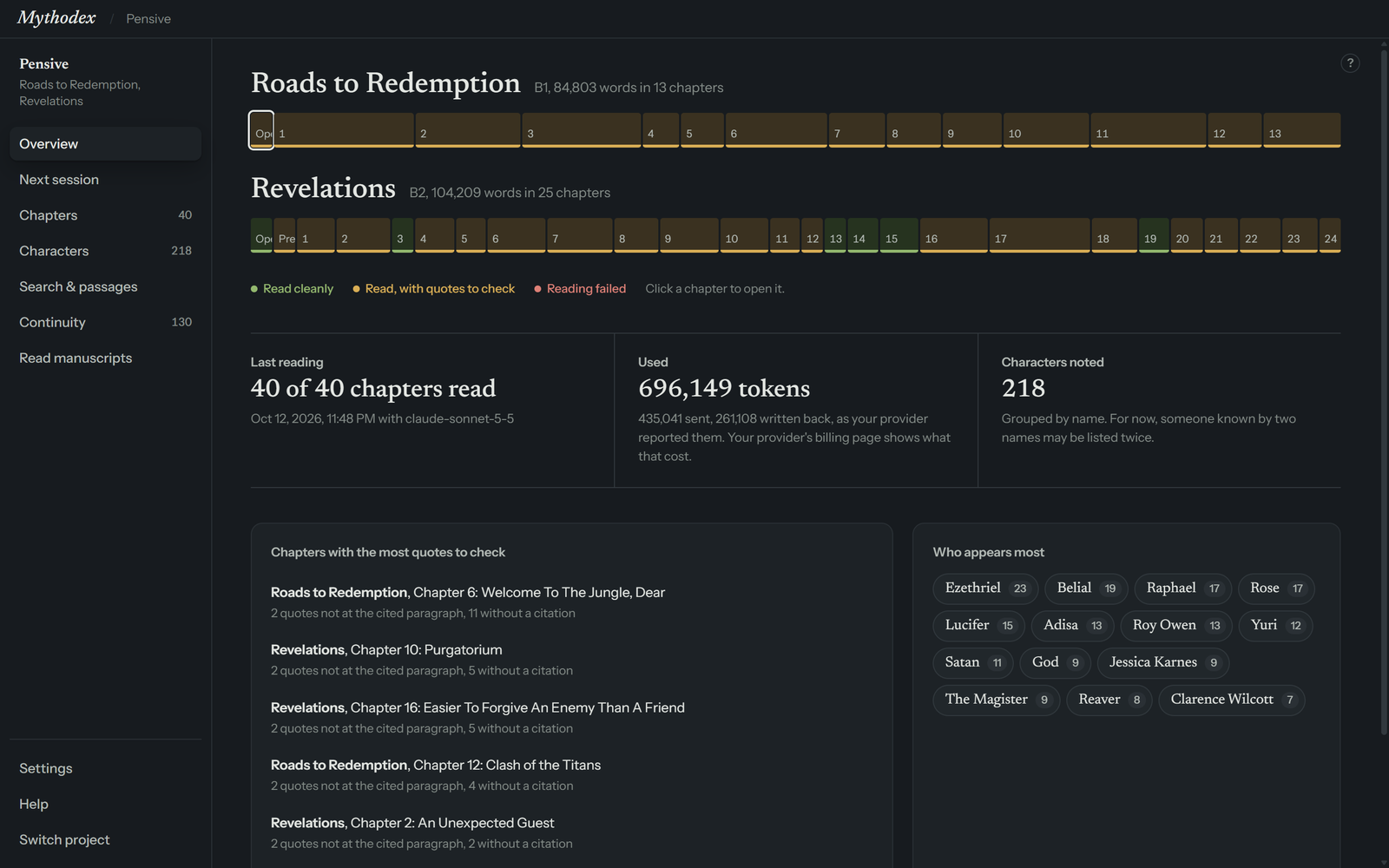
Overview is the whole series on one screen. It is a good place to start any session, and when a reading finishes, See the results opens it.
Chapter strips
Each book is a strip with one segment per chapter, or per piece of a very long chapter. A segment's width follows its word count, and its color shows its status. Select a segment to open that chapter.
- Read cleanly The app's checks found nothing to flag in the notes. That is not a guarantee that every statement is right.
- Read, with quotes to check The chapter was read and is usable, but the app's checks raised at least one warning. Most often a quote in the notes did not match the paragraph it cites, but the same amber label also covers other warnings, such as a section that is empty or out of order, a citation outside the chapter, or a key moment with no citation. Open the chapter to see what was found. See Quotes to check.
- Reading failed The chapter could not be read. Open it to see why, then read again.
- Older reading Read with an earlier version of the reader. See Older reading.
- Edited since read (N) N chapters were edited a little after they were read. Their notes still apply and show as read cleanly or with quotes to check. Overview lists them under Chapters edited since they were read, with what changed.
- Not read yet Shown when a chapter has no reading that matches the text, titles and model as of your last Check what's new or reading. Chapters that were read and then changed a lot are listed separately, below.
- Changed since read (N) N chapters were read, then changed too much to keep their notes. The next reading updates them.
Older reading, Edited since read, Not read yet and Changed since read appear in the legend only when some chapters are in that state. Color is never the only signal: each status has a name in the legend.
The facts under the strips
- Last reading shows how many chapters have been read out of all of them, then the date and the model or models used. If some are older, it adds how many are current and how many are older.
- Used adds up the tokens recorded for the chapter readings shown on this screen, sent and written back, as your provider reported them. A reused chapter keeps the counts from when it was read. A reading that an edit, a title change or a model change replaced is no longer counted, and Brainstorm answers are not included (each shows its own usage line). So it is not a running total of what you have spent. Your provider's billing page shows what that cost.
- Characters noted counts the characters found across your readings. They are grouped by name, so for now someone known by two names may be listed twice.
Chapters with the most quotes to check
Up to six chapters, worst first, each with how many quotes are not at the cited paragraph and how many are without a citation. Select a row to open the chapter. Many of these quotes are real but cited a few paragraphs off. The app cannot tell you how many are not in your text at all, so open the chapter and look.
Who appears most
The characters who appear in the most chapters, each with that count. Select a name to open that character.
Before anything has been read, Overview says Nothing has been read in this project yet. and offers a Read manuscripts button.
Chapters
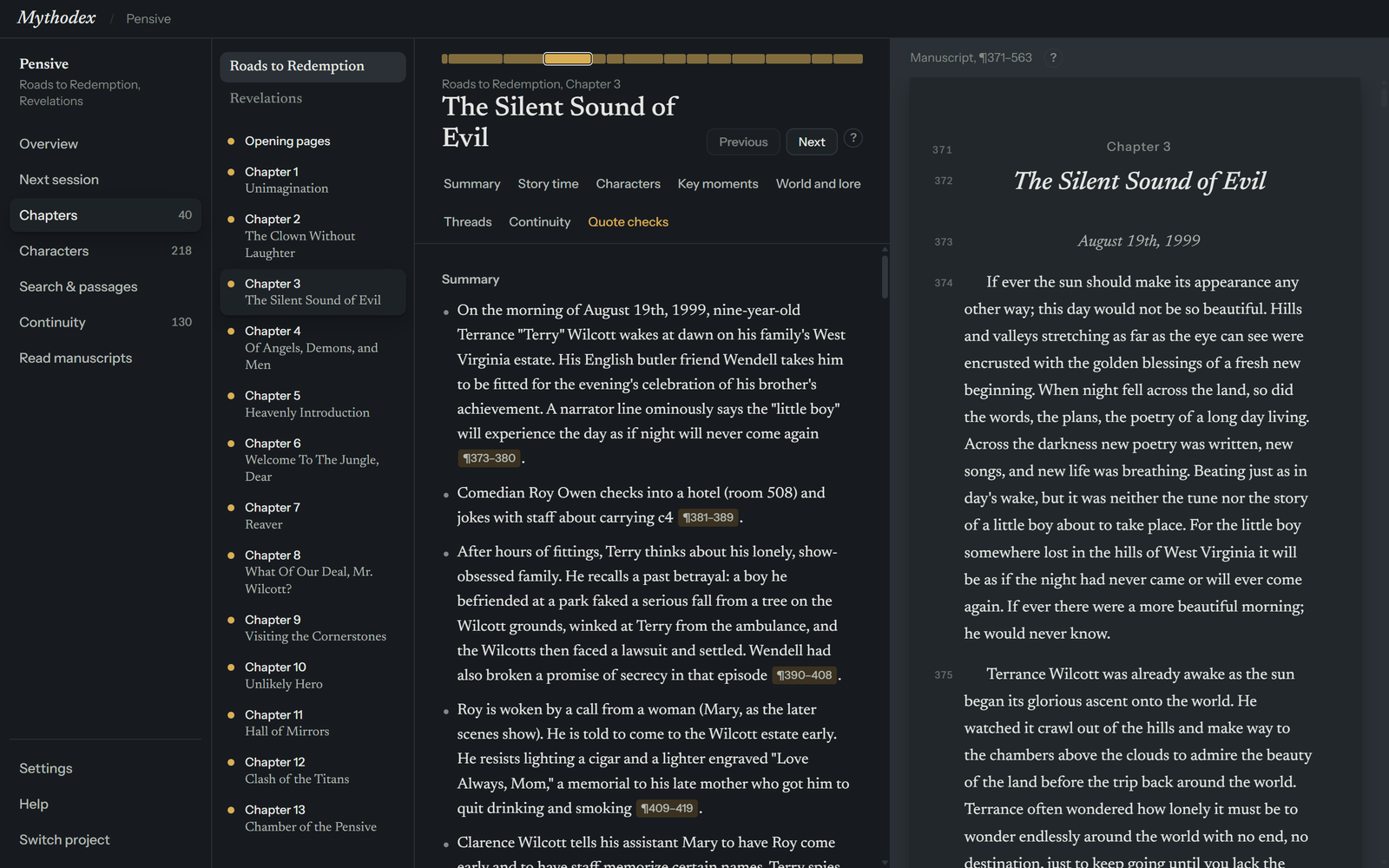
Chapters puts the notes for a chapter beside your own text, so you can check a note against the page without leaving the screen.
The three columns
- Chapter list. Your books are listed at the top. Select one to switch books. Below are its chapters, each with a status dot, its number and its title. Whatever comes before the first chapter is Opening pages. In a narrow window the chapter list hides itself; use the chapter strip or Previous and Next instead.
- Notes. At the top are a thin strip of the whole book, where you can select a segment to jump to it, the chapter's name and title, and the Previous and Next buttons.
- Manuscript. Your text for this chapter, as the project stored it at your last Check what's new or reading, with the paragraph range in the header (for example, Manuscript, ¶371–563) and each paragraph's number in the margin. A ⁂ marks a scene break. If you have edited the Word file since, this column does not change until you check again.
A very long chapter is read in pieces, and each piece is listed separately under the same chapter label.
The sections of the notes
The tabs under the title jump to a section of the notes. A tab appears only when the chapter has notes for it.
- Summary
- What happens in the chapter, in order.
- Story time
- For each scene, when it happens in story time and where, with flashbacks flagged.
- Characters
- Everyone named in the chapter: who they are, what they do, and where they stand at the end.
- Key moments
- Plot-significant events, revelations, deaths, decisions and prophecies, each meant to carry a citation, with a short quote for the most important. A key moment with no citation is flagged.
- World and lore
- How the world works as the book presents it: rules, objects, places, organizations and invented terms.
- Threads
- Setups, foreshadowing and open questions not resolved in this chapter, and anything resolved here that was set up earlier.
- Continuity
- Possible inconsistencies inside the chapter, such as a name spelled two ways or dates that do not add up. See Continuity.
- Quote checks
- Appears only when a quote in the notes did not match. See Quotes to check.
At the bottom of the notes, a line says when the chapter was read, with which model, and how many tokens went in and out.
Moving between chapters
Use Previous and Next, the chapter list, or the strip. Alt + Left and Alt + Right do the same from the keyboard.
If a chapter has no usable reading, the notes column says so. For a chapter that failed, it reads This chapter wasn't read. followed by the reason. For one with no reading that matches the text, titles and model as of your last check, it points you to Read manuscripts.
Citations
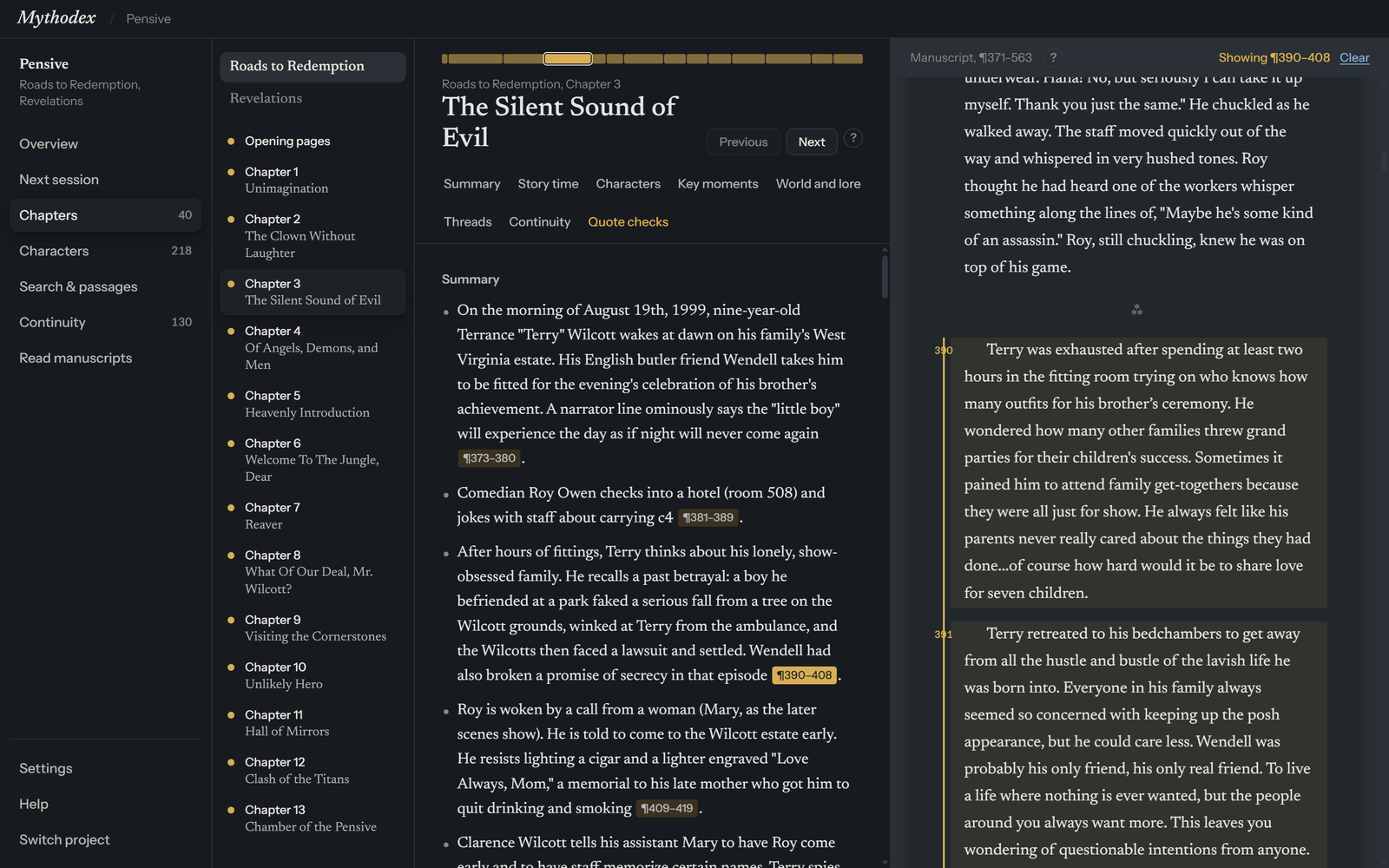
A ¶373–380 chip is a citation. It names the paragraphs of your book that the sentence before it came from. Citations let you check a note against your own text instead of taking the reader's word. The reader is asked to cite what it writes, but a statement without a citation can still get through, so check anything important.
What the numbers mean
counts every non-empty paragraph in your Word file from the top, front matter included, and the count runs on through the whole book instead of starting again at each chapter. That is why Chapter 3 might begin at ¶371. Word does not show these numbers, so use the ones in the margin of the manuscript column. Each book has its own count, and the book's ID (B1, B2) identifies which book a citation belongs to.
Try one
This is a made-up passage, not from any real book. Select the chip to see what happens in the app.
Reader's notes
The ferry crew sets out before light, and the pilot hides a letter in his coat . A storm is mentioned only once, as an afterthought .
Manuscript
1The ferry left the quay at dawn, as it had every day that year.
2Anselm checked the lines twice, then once more, though nobody was watching.
3The letter stayed in his coat, folded small. He would decide about it later.
4Gulls followed the wake for a mile and then lost interest.
5It might rain by evening, the cook said, but nobody answered her.
Following a citation in the app
Select a chip anywhere you see one: in the chapter notes, on a character's page, in Continuity, or in a Brainstorm answer. opens the chapter that holds the passage, scrolls the manuscript column to it and highlights the cited paragraphs with a gold bar and a gold number. The manuscript header changes to Showing ¶373–380 with a Clear link. Select Clear, or press Esc, to remove the highlight.
When numbers move
If you add or delete paragraphs earlier in a book and read again, keeps notes for unchanged chapters and moves their citations to the new numbers. See Keeping up to date.
Quotes to check
Readers sometimes quote your text in their notes. checks the quotes it can against the paragraph each one cites. When a quote does not match, the chapter is marked Read, with quotes to check, in amber, so you know which notes deserve a second look. The same amber label also appears when another check raises a warning, so open the chapter to see which it was.
The check is a safety net, not a proof. It skips quotes shorter than three words and titles it recognizes. It ignores differences in capitals, spacing and punctuation. It can accept a match in a neighboring paragraph, and for a quote with an ellipsis it can accept the pieces when they are found separately. A chapter with no flags therefore does not prove that every quoted string appears word for word at its cited paragraph. Check the quotes you plan to rely on.
Two kinds of flag
- not at the cited paragraph The quote is cited at one paragraph, but the app did not find those words there. Capitals, spacing and punctuation are ignored.
- without a citation The quote has no citation beside it, so there is nothing to check it against.
What a flag usually means
Many flagged quotes are real and were cited a few paragraphs off. When a quote turns up in exactly one paragraph of the chapter, shows its citation at that paragraph for you. Sometimes it adds a separate citation there instead of moving the original, when the original also supports other text. Your saved notes are not changed. A quote that is found nowhere, or in more than one place, is left alone and stays flagged. The app cannot say how often a flagged quote is missing from your text altogether, so those are the ones to look at first.
Where to see them
- On Overview, Chapters with the most quotes to check ranks the chapters.
- In Chapters, a Quote checks tab appears for a chapter that has any. Each entry shows the quote, where it was cited, and either where it was found, as ¶ chips you can select, or not found word for word in this chapter. A quote with no citation reads has no citation beside it.
- In Continuity, the In the notes tab lists quotes that are not at their cited paragraph, with a link to open each chapter. It does not list quotes without a citation. Those appear only in the chapter's Quote checks tab.
Characters
Characters gathers the notes about each character from every chapter and every book, so you can follow one person through the series without searching.
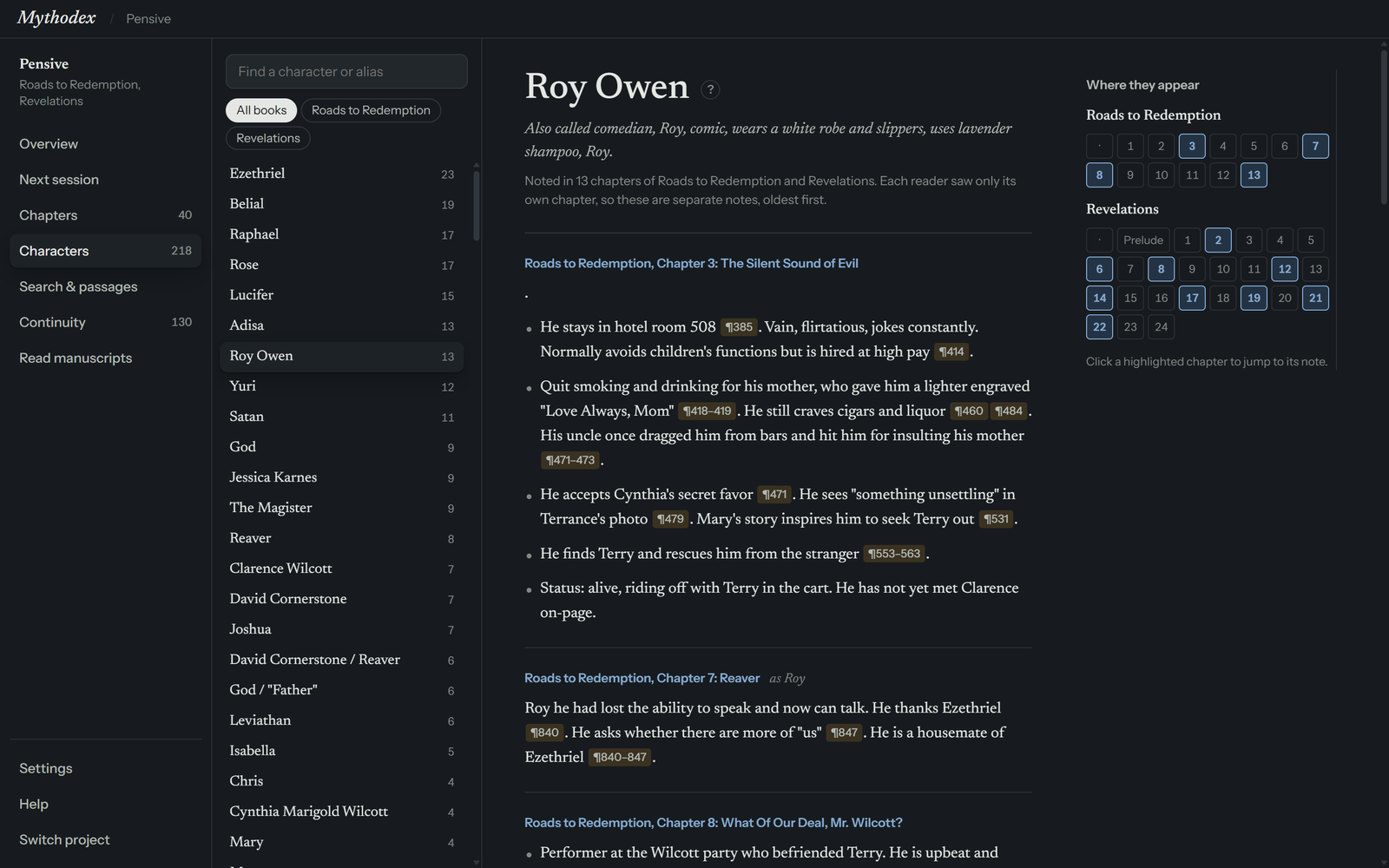
Finding someone
- Find a character or alias. Type part of a name, or a nickname the readers noted, and the list narrows as you type.
- Book filter. Choose All books or a single book to list only the characters who appear in it.
- The list. Names are sorted by how many chapters each person appears in, and that number sits beside the name.
A character's page
The page opens with the name and, if readers noticed other names, a line that starts Also called. Under it, a note says how many chapters mention the person. Below that are the readers' notes, oldest first, each headed by the book, chapter and chapter title. Select a heading to open that chapter. If the reader used a different name in that chapter, the heading adds as and that name. Citations in the notes are ¶ chips you can select.
Each reader saw only its own chapter, so these are separate notes for each chapter, not one merged biography.
On wide windows, a column on the right called Where they appear shows each book as a row of chapter numbers. Highlighted numbers are chapters that mention the person. Select one to jump to that chapter's note.
How names are grouped
Notes are grouped by name. A short name joins a longer one that begins with it, such as a first name and a full name, when only one longer name could be meant. Someone known by two entirely different names may still be listed twice for now. tells you this on Overview too.
You can pin a private note to a character from Next session. See Your notes.
Search & passages
Search & passages looks at the text of your books themselves, not at the reader notes. Use it to find where you wrote a line, or to browse the speeches in your story. It is a plain search of your manuscripts: it does not use your key, does not go online, and never changes your files.
Searching your books
Type in the box at the top and press Enter. The screen says Searching… and then shows how many paragraphs matched. Each result gives the book, the chapter and the paragraph number, for example Roads to Redemption · Chapter 3: The Bridge · ¶412, with the matching words highlighted. Select a result to read the whole paragraph, and choose Copy to copy it.
- One word matches that whole word only. ear does not find heart.
- Several words find paragraphs that hold all of them, in any order.
- Words in quotes find that exact phrase. Put a phrase in quotes to match it exactly.
- Capitals do not matter, and curly quotes and dashes match straight ones.
When some results hold the exact phrase and others only hold the words, the exact ones come first and the rest wait behind Show looser matches (all the words, any order). If there are more than 200 results, the screen says Showing the first 200 of the total, so make the search more specific to narrow it down.
Passages
While the search box is empty, the screen lists your passages: speeches and long stretches of dialogue, found by looking for words inside quotation marks. Each one shows who speaks, the chapter, the paragraph numbers, how many spoken words it holds, and its opening line in italics. Select a passage to read all of it, with your paragraphs as you wrote them, and choose Copy to copy it.
- Who speaks is read from your dialogue tags, such as "said Roy". When the tags do not make it clear, the passage says Speaker unclear. When two or more people are named, all the names are shown. Treat it as a guide.
- Filters. Pick a book (when you have more than one) or a speaker to narrow the list.
- Sort. Story order follows your books. Longest first puts the biggest speeches at the top.
Like Characters, this screen appears once something has been read. If a book's manuscript has not been read yet, the screen says which book was not searched.
The shortcut for this screen is Ctrl + 7. Ctrl + F here puts the cursor in the search box. On other screens, Ctrl + F finds words on the page. See Keyboard shortcuts.
Continuity
Continuity lists places where a reader thought your manuscript contradicts itself or leaves something unexplained. Treat every item as a lead to check, not a verdict. Some are intentional mysteries, and as the screen says, you decide.
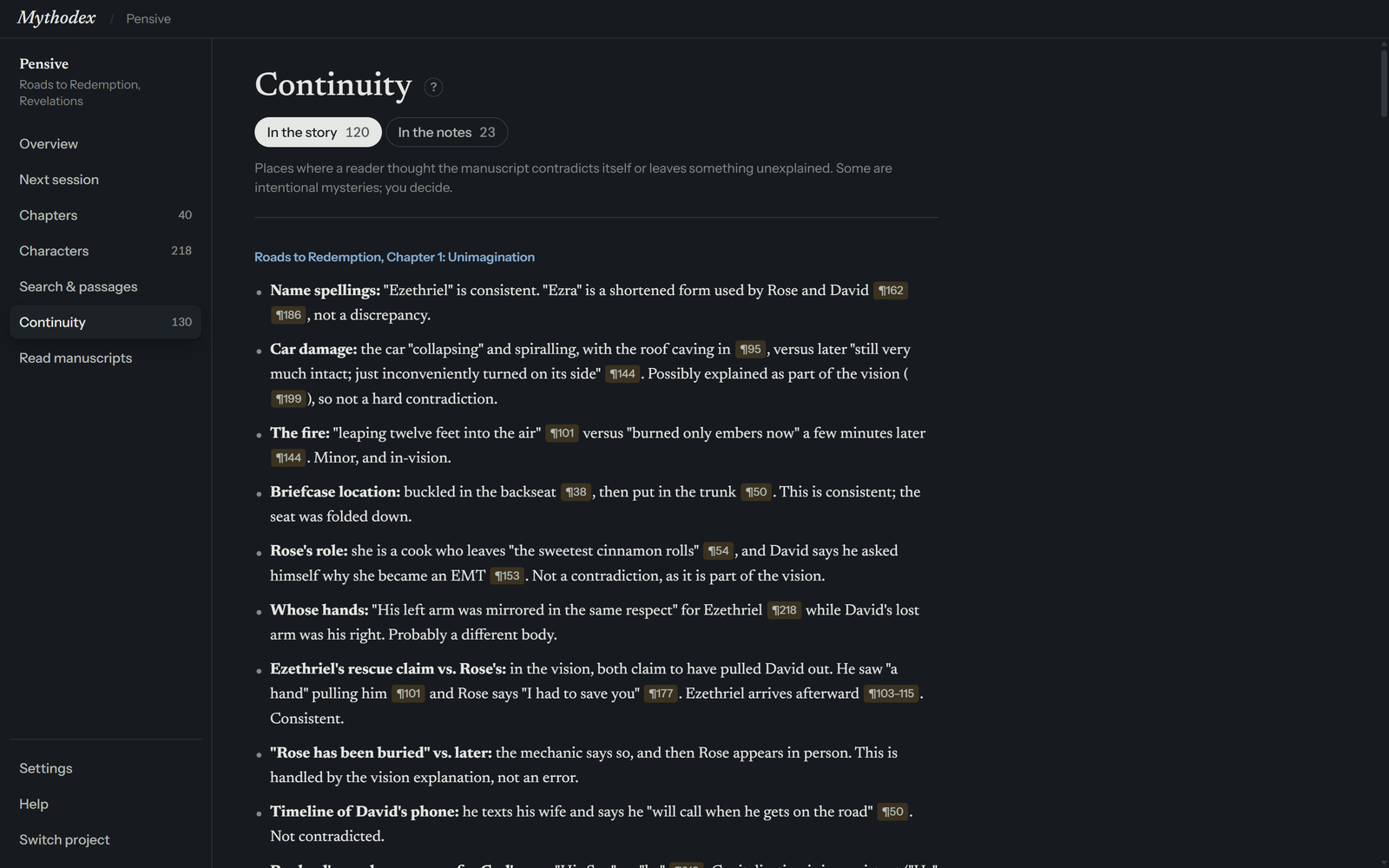
Two tabs
- In the story lists what readers noticed in your manuscript, grouped by chapter. Select a chapter name to open it. Readers often explain why they think an item is fine, so some entries end with a line like "not a discrepancy." They are listed anyway so that you can see what was weighed.
- In the notes lists chapters where a reader's own notes failed one of two checks: a quote not found at the paragraph it cites, or a key moment with no citation. A link under each chapter opens it so you can see where each quote really is. It does not list quotes that have no citation; those appear only in the chapter's Quote checks tab. See Quotes to check.
Each tab shows how many items it holds. When there is nothing, the screen says No continuity issues were noted. or Every quote matched its paragraph.
Reading the list
A reader sees one chapter at a time, or one piece of a very long chapter. So an item is about something the reader noticed inside what it was given. This screen does not compare chapters or books with each other.
Story time and page order
Many novels do not tell their story in the order it happened. A flashback is not an error. Readers are told that a story may be non-linear and to flag flashbacks and time jumps, and each chapter's Story time section records when its scenes happen. If an item turns out to be a deliberate flashback or a mystery you planted, you can ignore it.
Items cannot be marked as resolved. If you want to remember to check one, add a note in Your notes and pin it to the chapter.
Your notes
The Next session screen has two columns. On the left, Your notes is a private place to leave yourself notes for the next time you write. On the right is Brainstorm.
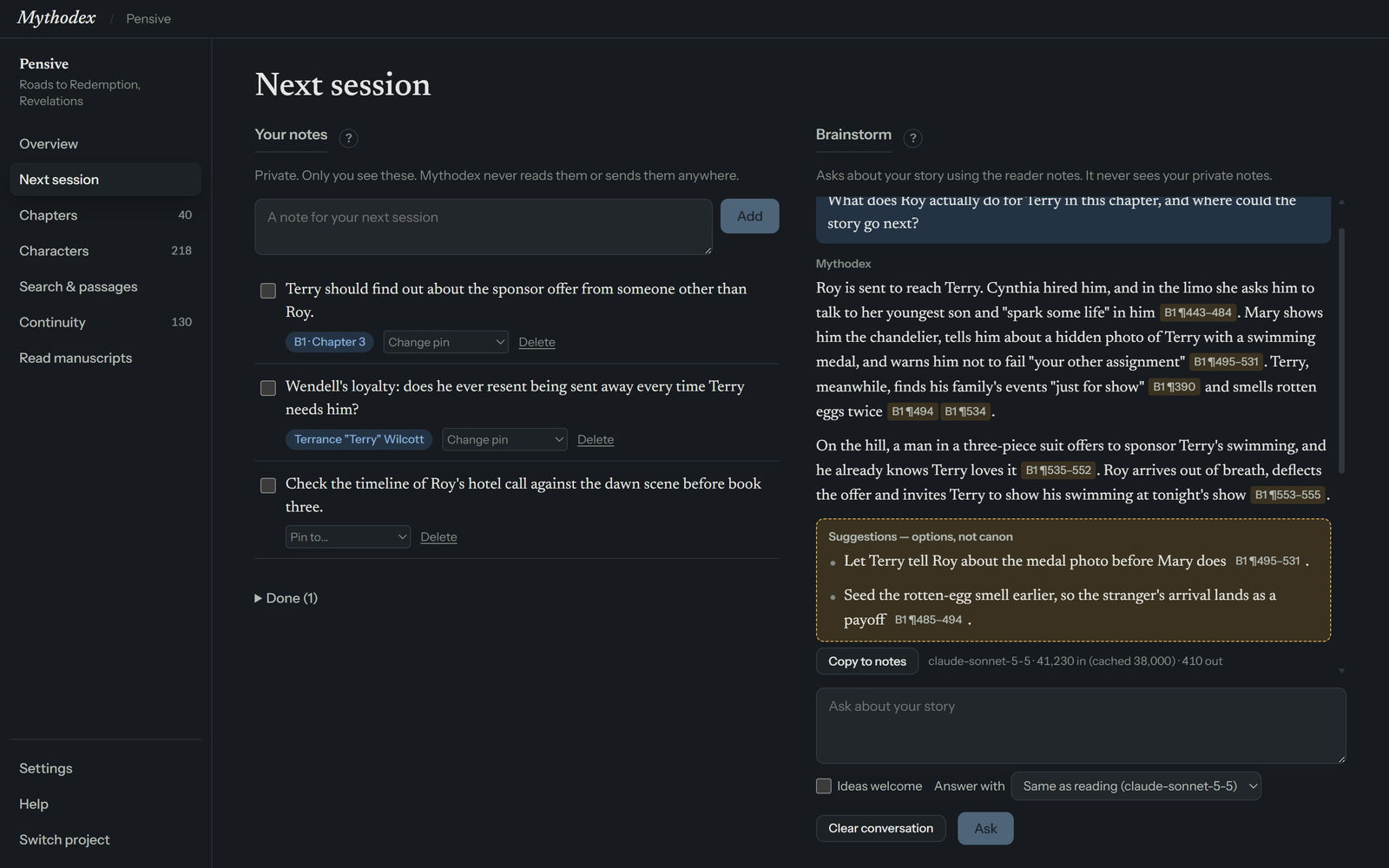
Your notes are private to the app. never reads them and never sends them anywhere, not to a provider and not to Brainstorm. They are saved in your project folder as ordinary, unencrypted files, so anyone who can open that folder can read them.
Add a note
Type in the box labeled A note for your next session and choose Add, or press Enter. Use Shift + Enter for a new line. New notes go to the top. Notes save on their own as you work.
Edit, finish and delete
- Select a note's text to edit it. Enter saves the change and Esc cancels it.
- Tick the box beside a note to mark it done. Done notes move to a Done list at the bottom, which opens and closes. Untick a note to bring it back.
- Choose Delete to remove a note. For five seconds the screen offers Note deleted. with an Undo link.
Pin a note to a chapter or character
Under each note, the Pin to… menu lists your chapters and your characters. Pick one and the note gets a small chip with its name, such as B1 · Chapter 3. Select the chip to open that chapter or character. The menu then reads Change pin, and it also offers Remove pin. If a pinned chapter or character is no longer in your readings, the chip turns grey and cannot be opened.
Pins are only available once something has been read.
If a note cannot be saved, a banner on every screen says Couldn't save notes for your project with the reason and a Retry link.
Brainstorm
Brainstorm is a place to think out loud about your story. You ask a question in plain words, and it answers from the reader notes, with ¶ citations so you can check its claims against your own text. It sits on the right of the Next session screen. It never sees your private notes.
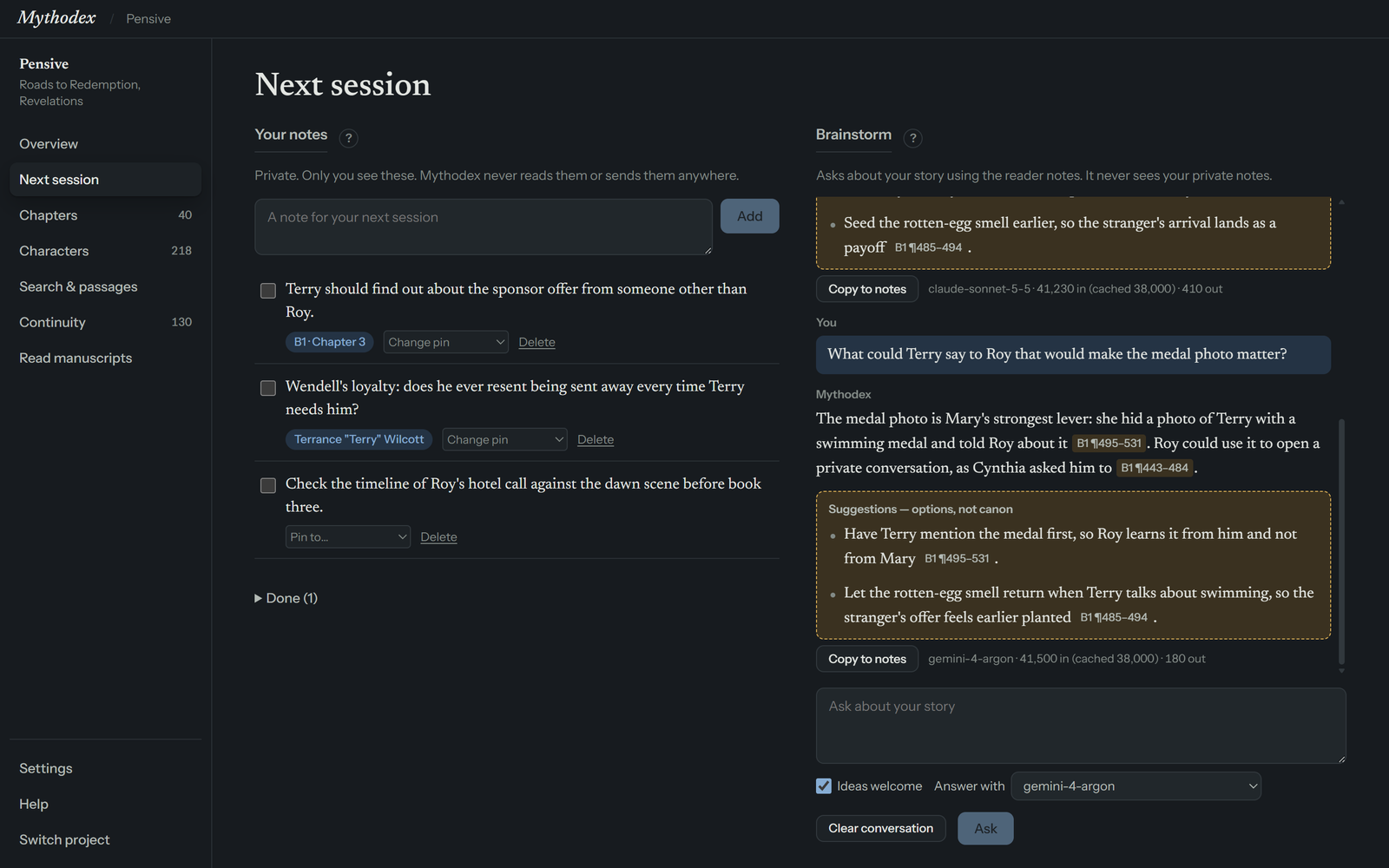
What it needs
- Something has been read. Otherwise it says Nothing has been read yet. Read your manuscripts first.
- A key saved for the provider that will answer, and the data notice accepted.
- The project's settings saved. If not, it says Save this project's settings first (Read manuscripts).
- No reading in progress. While one runs, it says A reading is in progress. Brainstorm is off until it finishes.
Ask a question
Type in the box that shows the hint Ask about your story (screen readers call it Ask Brainstorm) and choose Ask, or press Enter. Use Shift + Enter for a new line. While it works, the screen says Reading your notes…. Answers come only from the notes, say so when the notes are silent, and mark anything they infer rather than read. A question can be up to 8,000 characters long.
Brainstorm keeps a running conversation, and it remembers the last 12 turns when it answers, so you can follow up on what it just said. If it takes more than three minutes, it stops and says so, and nothing is lost. When a question fails, the screen shows why with a Retry link, and your question is given back to you if it was never filed.
Ideas welcome
With Ideas welcome unticked, Brainstorm only answers: it tells you what the notes say. Tick it and each answer is followed by a box headed Suggestions — options, not canon. These are possibilities for you to weigh, each tied to your own text. They are never added to your story's facts, and you are free to ignore all of them.
Answer with
The Answer with menu chooses the model that writes the answer. It lists Same as reading, followed by the name of the model that read your books, plus every model you ticked in Settings. Whatever you choose, the notes themselves always come from the reading, so a cheaper model can answer from another model's notes. Your choice is saved with the project. If the model you chose is no longer available because its key was removed or it was unticked, the reading model answers instead, and a line tells you so.
Copy to notes
Under each answer, Copy to notes adds the answer to Your notes as a new private note that begins From Brainstorm:. The button then reads Added to notes.
Clear conversation
Clear conversation empties the transcript. For five seconds the screen offers Conversation cleared. with an Undo link.
The usage line
Beneath each answer is a line such as 41,230 in (cached 38,000) · 410 out, led by the model's name. In and out are the input and output token counts your provider reports. Cached is the part of the input your provider says it reused from an earlier request, and cache written is the part it stored for later, when it reports one. Providers count these differently, and some report the cached figures separately from in, so do not assume that in is everything that was sent. Your provider's billing page shows what these cost.
About cached tokens
Every question sends the usable reader notes for your whole series, so each question is large. With Anthropic, asks the provider to cache those notes, and other providers may cache automatically. Whether a cache is used, how long it lasts and what it saves are up to the provider, so a follow-up may or may not cost less. The usage line shows a cached figure only when the provider reports one.
Very small models and long series
Because every question carries the notes for your whole series, a long series can be too big for a model with a small context size, and your provider may refuse the request. If that happens, the error appears on the screen. Pick a model with a larger context in Answer with. If it is not listed, sync and tick it in Settings.
Keeping up to date
Your books keep changing, and is built for that. Keep writing in Word as you always do. When you want the notes to catch up:
- Save your Word file.
- Open Read manuscripts and choose Check what's new. It tells you how many chapters are new or changed.
- Choose Start reading.
Only the chapters you changed are read again. The rest are reused at no cost.
- Saved under a new name? Choose Use a newer file… on that book, so the ID and title stay and you do not get a second copy.
- New book? Choose Add a book….
- Changed a chapter title or the scene breaks? That counts as a change, so the chapter is read again.
- Changed the model or a book title? The whole book is read again.
Paragraph numbers are counted by , not by Word. If edits shift them, citations for unchanged chapters are moved to match. See Citations.
Older reading
From time to time the instructions gives its readers get better. Notes made with an earlier version of the reader are not thrown away. They stay visible and are marked Older reading until you read those chapters again.
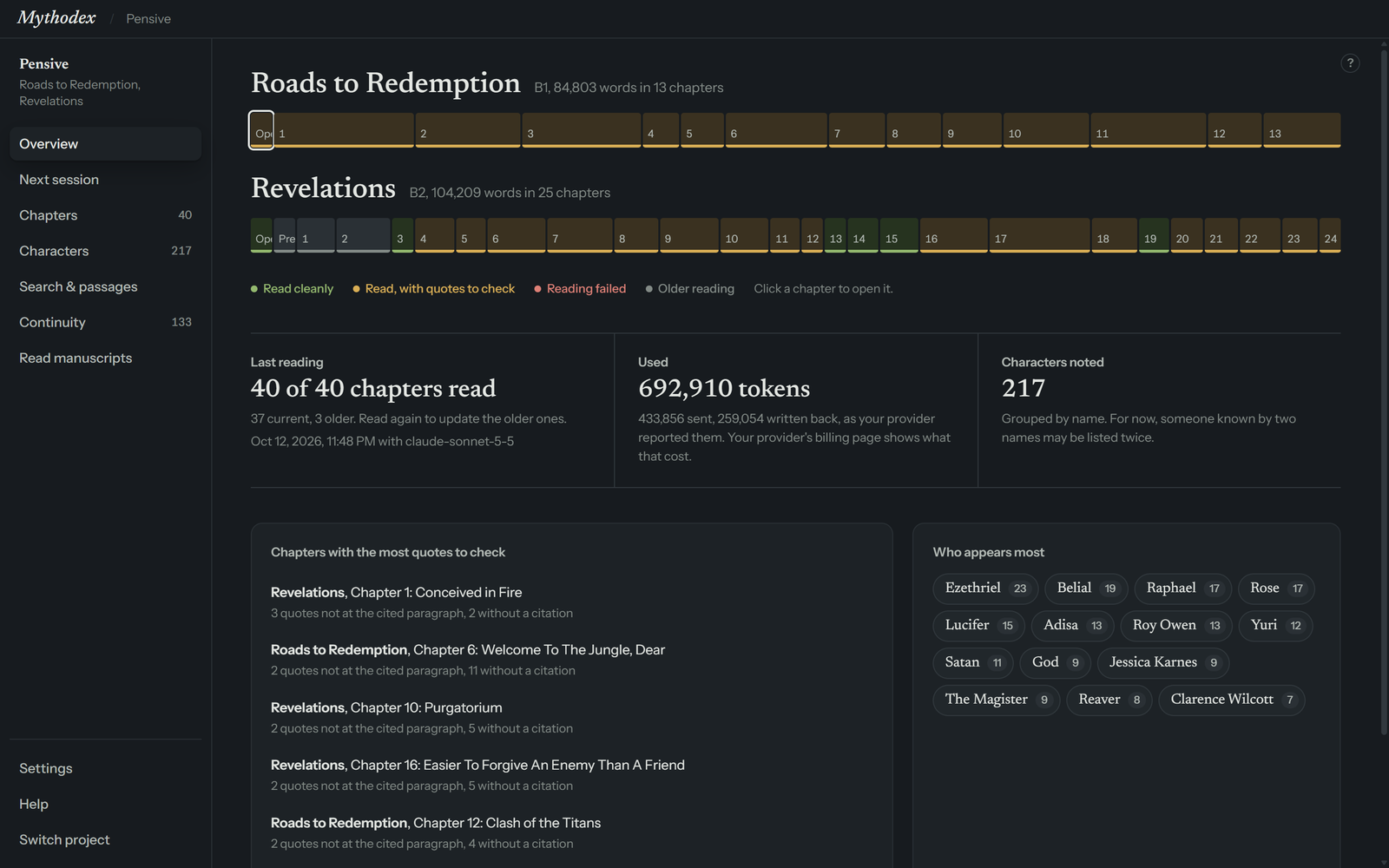
- On Overview, older chapters are grey in the strip, and the legend adds an Older reading label.
- Under Last reading, a line counts them: current, older. Read again to update the older ones.
- In Chapters, an Older reading tag appears above the notes, and hovering it explains that the chapter was read with an earlier version of the reader.
- Check what's new includes older chapters in its count and says how many already have an older reading.
Older notes are still usable. Their citations and quote checks work as before. To update them, choose Check what's new and then Start reading. The chapters are read again, and your provider charges for that, so you can pick a good moment.
Settings
Open Settings from the bottom of the sidebar, or from the link on the start screen. It has four sections, from top to bottom.
- API keys
- One row for each provider, plus the Anthropic workspace ID. See Keys.
- Models
- Sync, tick and save the models you want to see in your lists. See Models.
- Your manuscript and the provider
- The data notice, and the link to show it again. See What leaves your computer.
- Appearance
- The color theme.
Appearance
Choose System, Light or Dark. System follows your Windows setting and is the default.
Project settings live elsewhere
Settings is for things that belong to you and this computer. Things that belong to one series are on Read manuscripts: the series name, the project folder with its Open and Move… buttons, your books, and the reading model. See Projects and Read manuscripts.
Keyboard shortcuts
Hold Ctrl and press a number to jump between screens. These work once a project is open. The numbers do not follow the order of the sidebar: Search & passages sits after Characters but is Ctrl + 7. Hover over a name in the sidebar to see its shortcut.
| Keys | What it does |
|---|---|
| Ctrl + 1 | Overview |
| Ctrl + 2 | Next session |
| Ctrl + 3 | Chapters |
| Ctrl + 4 | Characters |
| Ctrl + 5 | Continuity |
| Ctrl + 6 | Read manuscripts |
| Ctrl + 7 | Search & passages |
| Ctrl + , | Settings |
| Ctrl + F | Find words on the page, on any screen, even before a project is open. A small bar appears at the top right. On Search & passages it puts the cursor in the search box instead. |
| Enter / Shift + Enter | In the find bar: next match / previous match |
| Esc | Close the find bar |
| Alt + Right | Next chapter, on Chapters |
| Alt + Left | Previous chapter, on Chapters |
| Esc | Clear the highlighted citation, on Chapters |
| Enter | Send your question in Brainstorm, add a note in Your notes, save an edited note, save a key you pasted, or create a project from the name box |
| Shift + Enter | Start a new line in Brainstorm and in Your notes |
| Esc | Cancel an edit to a note |
The shortcuts for Chapters do not fire while you are typing in a box.
Privacy
The short version of where your work goes.
- Your manuscripts stay on your computer. The only exception is the chapters, or pieces of chapters, sent to the provider you chose while a reading runs. See What leaves your computer for what each provider says it does with them.
- Brainstorm sends your reader notes, never your manuscripts or private notes, to the provider that answers.
- Your keys are encrypted on this computer. They are stored apart from your projects, cannot be shown again, and are used only when you ask for a reading, a model sync or a Brainstorm answer.
- Your private notes are never sent. The app does not read them or send them to any provider. They are plain, unencrypted files in your project folder, so protect that folder as you would your manuscript.
- Your work never passes through Red Warden Studios. sends your work only to the provider you chose, and you need no account with us. The only thing it sends us is your license key (and this PC's Windows name, as its label) when you activate, deactivate or list your activations. It also asks GitHub every few hours whether there is a newer version; see Updates.
- Without a key, the app sends no manuscript text anywhere.
Your project folder holds a local copy of the parsed text of your manuscripts (every paragraph, kept by book and version), the reader notes, your private notes and your Brainstorm conversation. None of it is encrypted, and your private notes are ordinary files. Anyone you give the folder to, or who can open a backup of it, can read all of it. Treat the folder like the manuscript itself.
Troubleshooting and questions
Select a question to open the answer. Messages are quoted exactly as the app shows them.
Brainstorm says "Nothing has been read yet"
The full message is Nothing has been read yet. Read your manuscripts first. It means the model that read your books has no notes in this project yet.
- If you have not added books or run a reading, do that first: add your books, then start reading.
- If you read with one model and then changed the model on Read manuscripts, the new model has no notes. Read again with it, or change the model back.
"Save this project's settings first"
Brainstorm works from your project's saved settings, and this message means they are not saved yet. It happens with a project folder that was created before settings were saved, or when you have edited the series name, a title or the model and not yet saved. Go to Read manuscripts and choose Check what's new, which saves them. Then return to Brainstorm. The full message is Save this project's settings first (Read manuscripts).
The Ask box is greyed out
Brainstorm turns itself off, and says why just above the box, in these cases:
- No key for the provider that will answer: Add a key in Settings to use Brainstorm.
- A reading is running: A reading is in progress. Brainstorm is off until it finishes.
- The project's settings are not saved: Save this project's settings first (Read manuscripts).
It is also off while an answer is loading, while a saved choice for Answer with is being stored, and after an answer that could not be saved. In that last case the answer shows Not saved. with a Retry link; select it. If the data notice has not been accepted, Brainstorm answers Read and accept the data notice first (Read manuscripts).
Start reading is greyed out
- No key is saved for the project's provider. Add one in Settings.
- You have not accepted the data notice. Choose I understand on the notice. See What leaves your computer.
- A book ID is not valid or is used twice. The screen names the problem under the books table.
- For a provider other than Anthropic, no model is picked. The app says Pick a model for and the provider's name, followed by first.
A model rejects the request because it is too long
Brainstorm sends the reader notes for your whole series with every question. A model with a small context size may not fit them, and your provider's error appears on the screen. Choose a model with a larger context under Answer with. If the model you want is missing, sync and tick it in Settings. See also Brainstorm.
My key is rejected
When a key does not fit the provider you are adding it for, says why before saving it:
- Anthropic: That doesn't look like an Anthropic key. They start with sk-ant-.
- OpenAI: That doesn't look like an OpenAI key. They start with sk-. A key that begins with sk-ant- gets That looks like an Anthropic key, not an OpenAI (ChatGPT) one. Add it under Anthropic (Claude) instead.
- Google: That looks like another provider's key, not a Google (Gemini) one. Google keys do not need to begin with any particular letters.
- xAI: That doesn't look like an xAI API key. The key itself starts with xai- and xAI shows it only once, right after you create it. The Key ID in the key list is a different code. If you no longer have the key, create a new one and copy it from that first window. The Key ID and the key are different things. Only the key works.
- Any provider: a key with a space or line break inside it, or one that is too short, is refused. Copy the whole key again.
A key can look right and still be refused by the provider at reading time, for example if it was revoked or the account has no billing. For a refused key the app often shows its own message, That key was refused by followed by the provider's name, and for other failures it shows the provider's error with your key removed. The app cannot tell you why a provider refused a key, so check it in your provider's console. A saved key that Windows can no longer decrypt shows This saved key can't be used. Remove it and add it again.
My project says "Folder not found" in Your projects
The folder was moved, renamed or deleted, or its drive is not connected. The entry stays in the list so you can find it. If you moved the folder yourself, choose Open another folder… and pick it in its new place. If you do not need the project in the list, choose Remove from list. That removes only the list entry and never deletes files. If you try to open a folder that has gone, the app says Couldn't open followed by the folder's path.
Why are some quotes flagged?
The quotes in the notes are checked against the paragraph each one cites. A flag means the app did not find the quote there. Many flagged quotes are real and simply cited a few paragraphs off, and shows the citation at the right paragraph when it finds the quote in exactly one. The app cannot say how many are missing from your text altogether, so look at the ones it could not place first. The amber label can also mean another check raised a warning. See Quotes to check.
A chapter shows "Reading failed" or "not read"
The provider returned an error, or the notes it wrote could not be used. Open the chapter in Chapters to see the reason. Then choose Start reading again. Chapters that finished are reused, and the failed ones are tried again.
Why was every chapter read again?
A reading is reused only when the chapter's text, the book's title and the model are all the same as before. Changing the model, renaming a book, or editing a chapter makes that part read again. Run Check what's new first, and it tells you exactly how many chapters will be read.
A banner says "Couldn't save"
A red banner near the bottom of the window, on any screen, means a save failed. It reads Couldn't save followed by what, such as your notes for a project, and the reason. Check that the project folder still exists and that you can write to it, then choose Retry. Until a save succeeds, your latest changes are kept in the window.
The same character is listed twice
Characters are grouped by name. A short name joins a longer one that starts with it, but someone known by two entirely different names may be listed twice for now. Open each entry to see its notes, and use Find a character or alias to search.
Does it change my manuscript?
No. only reads your Word files. It never edits, saves or moves them. You keep writing in Word.